Track Tide App - Staff Member(Employee) User Manual
Introduction
Welcome to the Track Tide Mobile App User Manual. This
guide is designed to help you navigate and make the most
of the Track Tide app, ensuring a seamless and efficient
experience for both employees and company administrators.
Track Tide is a cutting-edge attendance and leave
management solution built using Flutter, offering a range
of features tailored to streamline daily operations and
enhance productivity.
This manual provides detailed instructions on how to use
the various features of the app, from initial registration
and login to managing attendance, applying for leaves, and
customizing personal settings. Whether you are a new user
or looking to explore specific functionalities, this guide
covers everything you need to know.
You will find step-by-step instructions, screenshots, and
helpful tips for each section of the app, including the
Dashboard, Leave Screen, QR Code Scan Screen, and more.
Our goal is to ensure that you can utilize Track Tide to
its fullest potential, making attendance tracking and
leave management easier and more efficient.
Thank you for choosing Track Tide. We are committed to
providing you with the best tools and support to enhance
your work experience. Let's get started!
Onboarding Screen
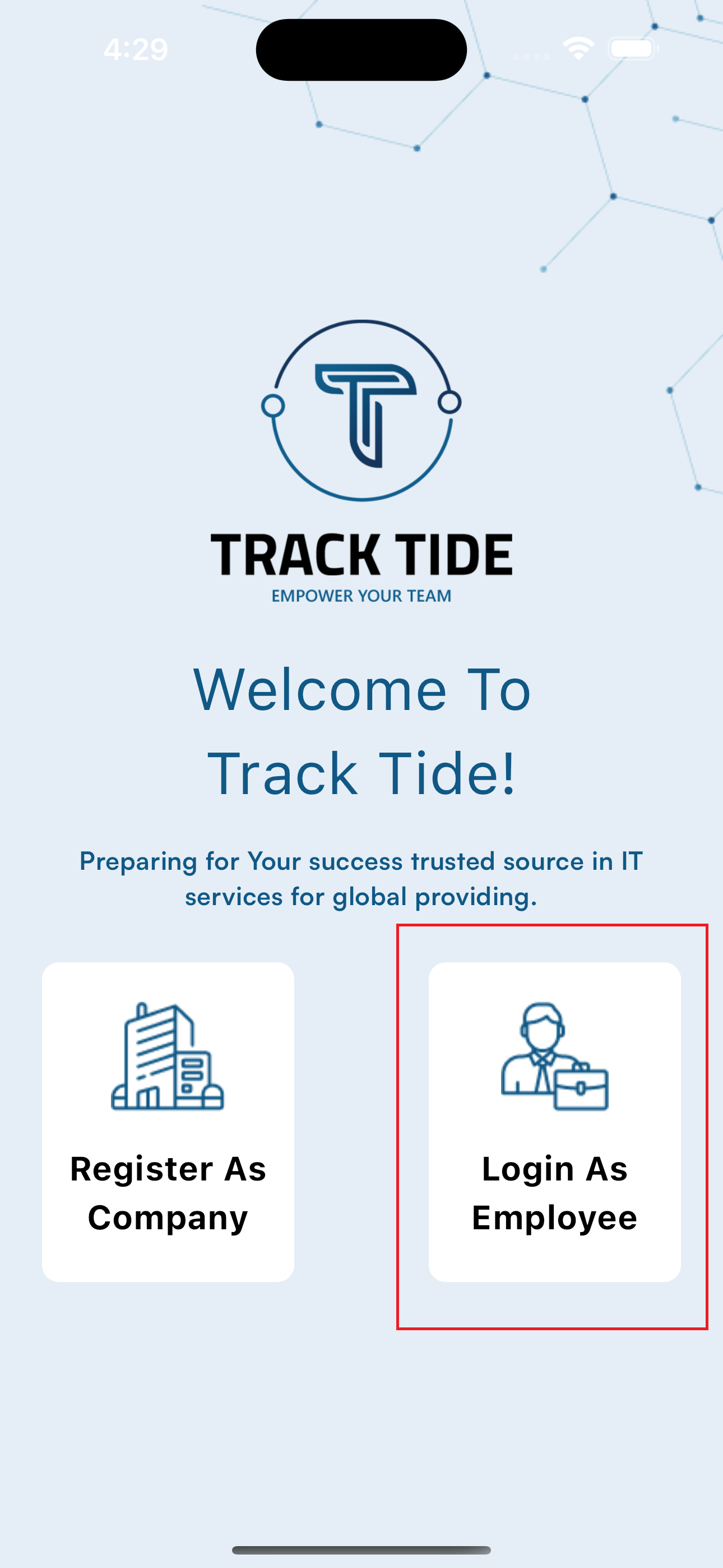
When users first download and open the Track Tide app,
they are presented with
options
-
Login as employee
- If the user is a staff member and their company is already registered in the Track Tide system, they can proceed directly to the login screen
- On the login screen, users need to enter their email and password to access the staff flow
- This option ensures that staff members can quickly access their dashboard and other features relevant to their role
Login Screen
The login screen is designed for staff members to
enter their login credentials, including username and
password, to access their accounts
If a staff member forgets their password, they can use
the "Forgot Password" option. This feature guides the
user through a series of steps to reset their
password, typically involving email verification to
ensure security
Successful login grants access to the dashboard and
other functionalities of the app
Dashboard Screen
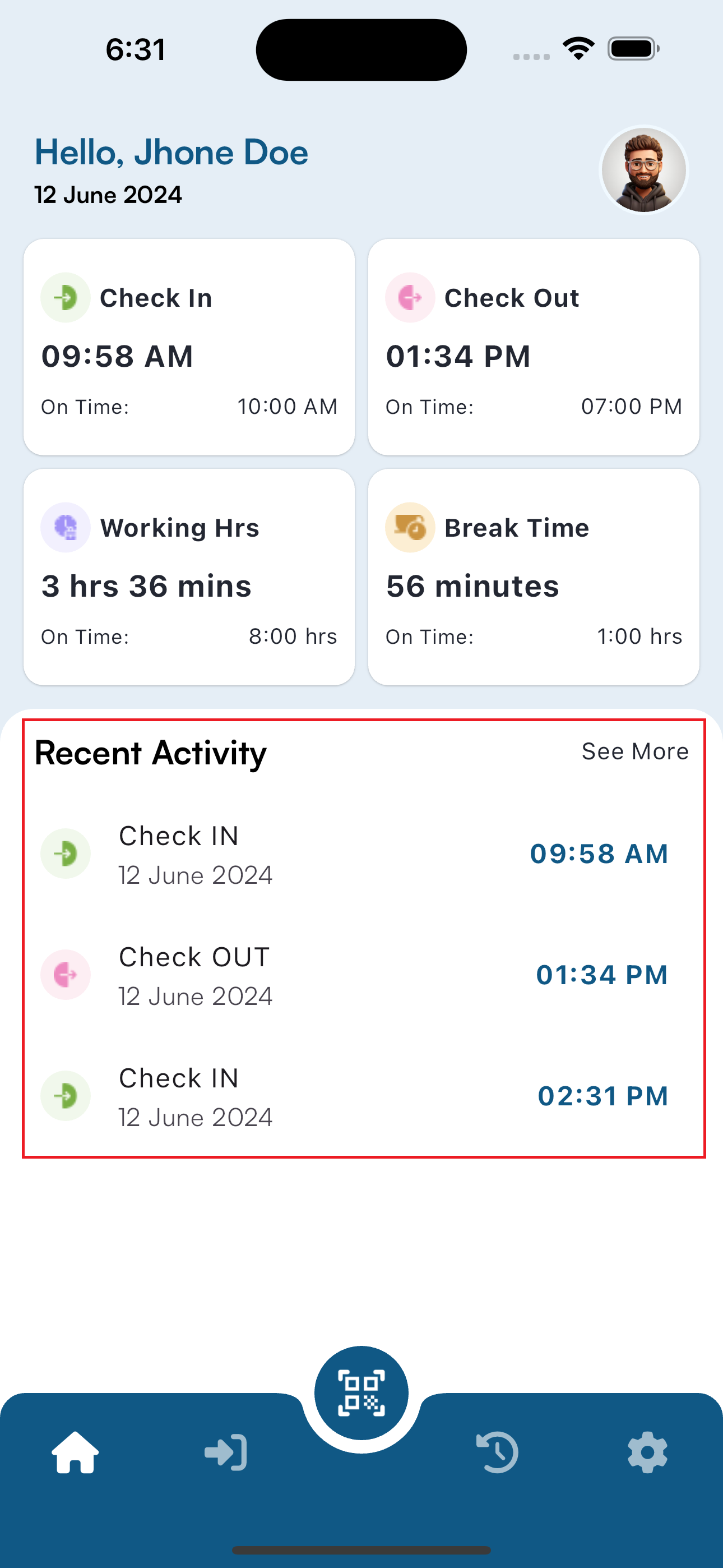
The dashboard is the central hub for staff members,
providing a comprehensive overview of their daily
activities and statistics
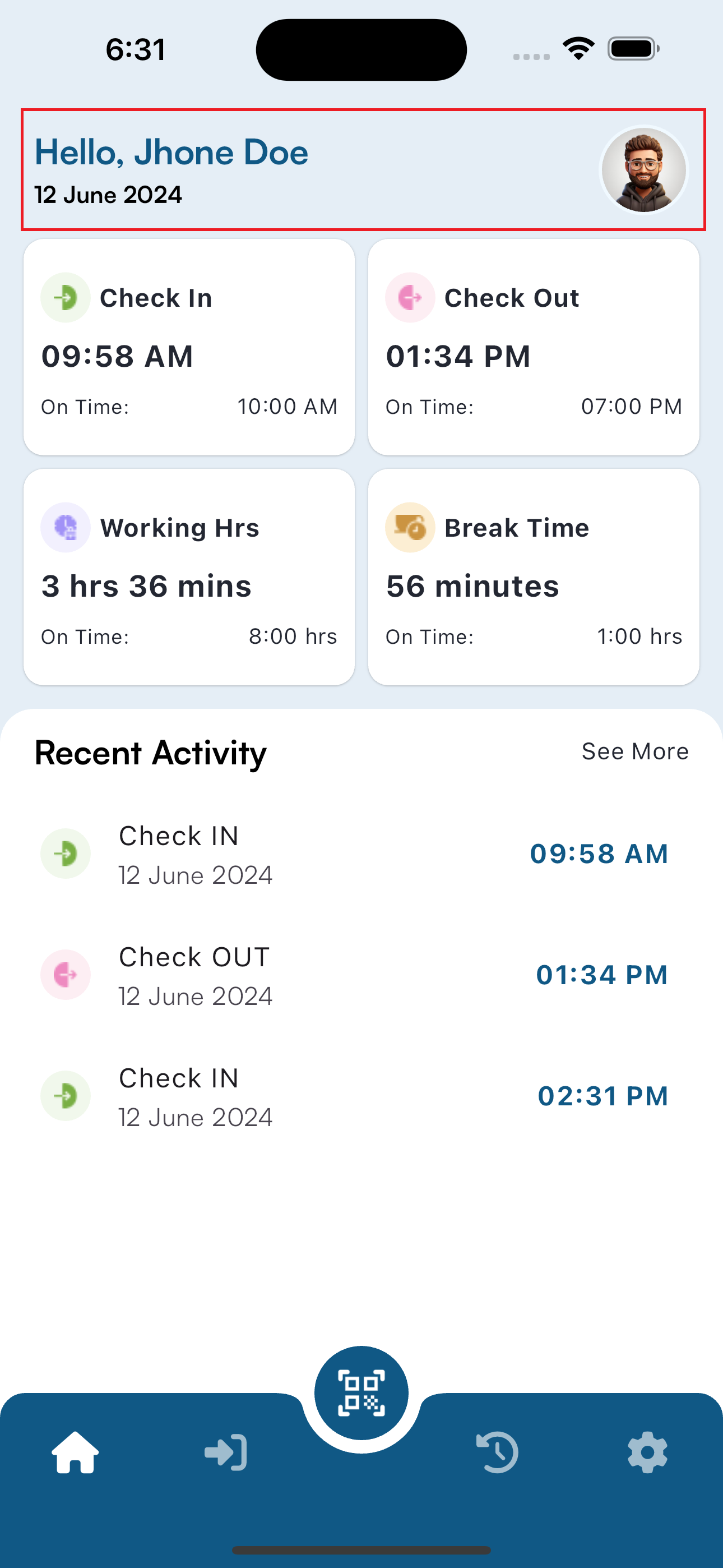
Profile Section
- Name and Profile Image: Displayed prominently at the top of the dashboard for easy identification
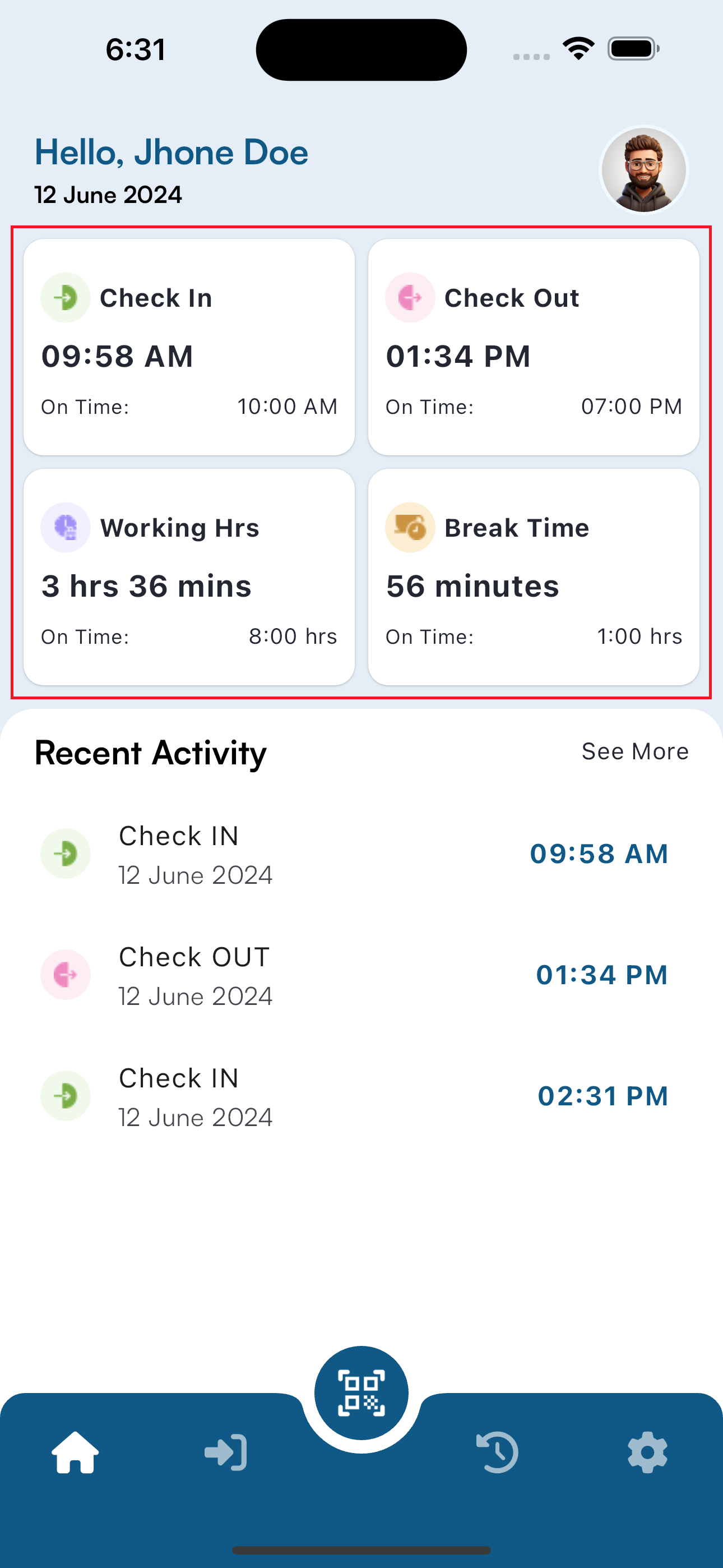
Today's Statistics
- First Check-In Time: The time the staff member first checked in for the day.
- Last Check-Out Time: The last recorded check-out time.
- Total Working Hours: Calculated from the first check-in to the last check-out, excluding break times.
- Total Break Time: The cumulative time spent on breaks throughout the day.
Recent Activity
- A detailed log of all check-in and check-out times recorded during the day, providing a clear timeline of the staff member's attendance and break periods.
Insights and Alerts
- Important notifications and alerts related to attendance, such as reminders for pending check-ins or discrepancies in recorded times.
QR Code Scan Screen
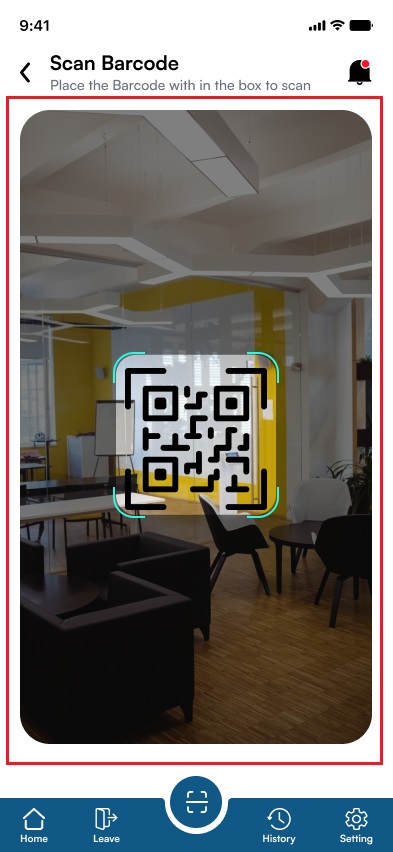
The QR Code Scan screen facilitates seamless check-ins and
check-outs for staff members:
Location Tracking :
- If the company admin has enabled location tracking, the QR code can only be scanned within a specified radius of the company's location.
- This ensures that staff members are physically present at the office during check-ins and check-outs
- If location tracking is not enabled, QR codes can be scanned from any location.
Conditions and Error Handling
- The system will display error messages if the QR code is scanned outside the allowed radius or if there are any discrepancies in the scanning process.
- Staff members will be guided on how to resolve such errors.
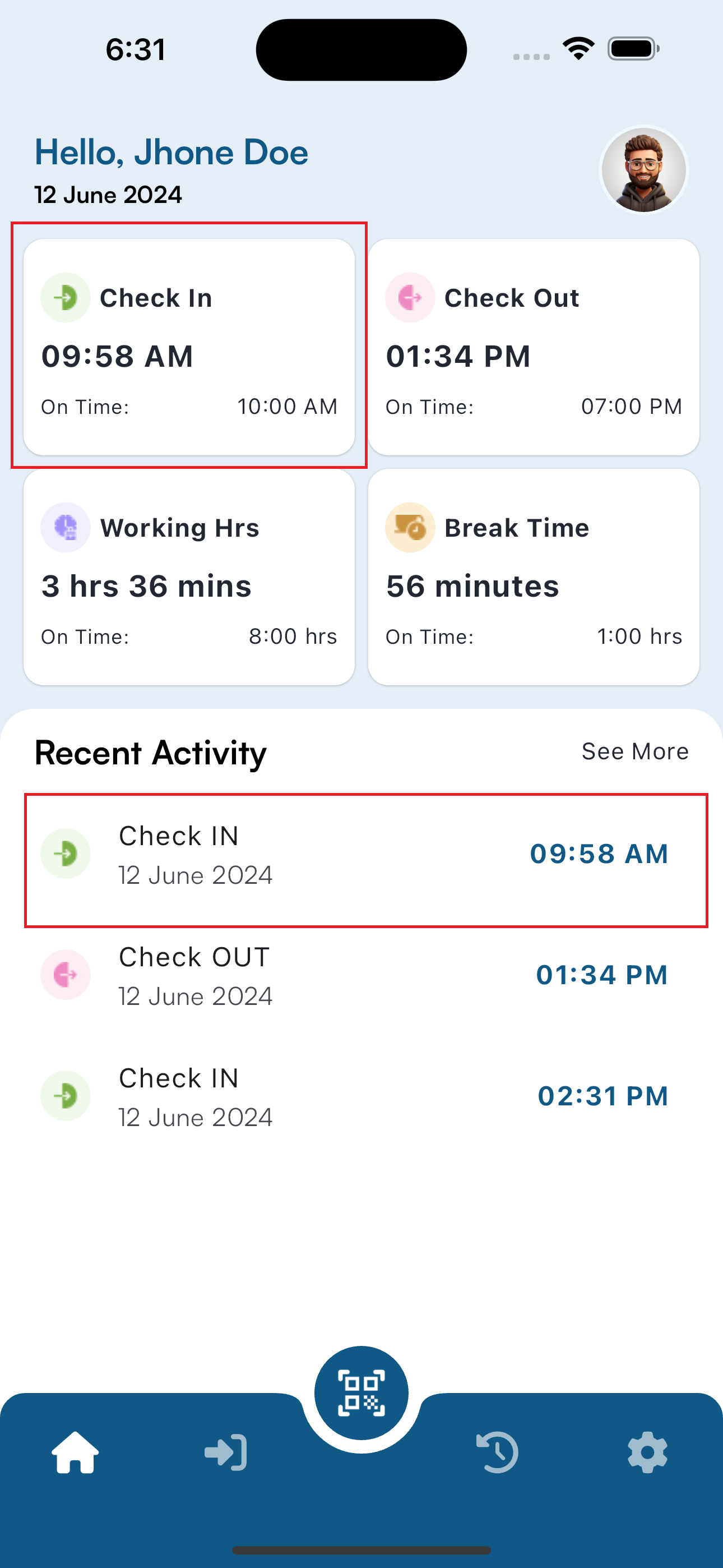
Check-In Process :
- Upon arriving at the office, staff members need to navigate to the QR Code Scan screen and scan the QR code provided by the company admin.
- The timestamp of the scan will be recorded in the system, marking the start of the workday.
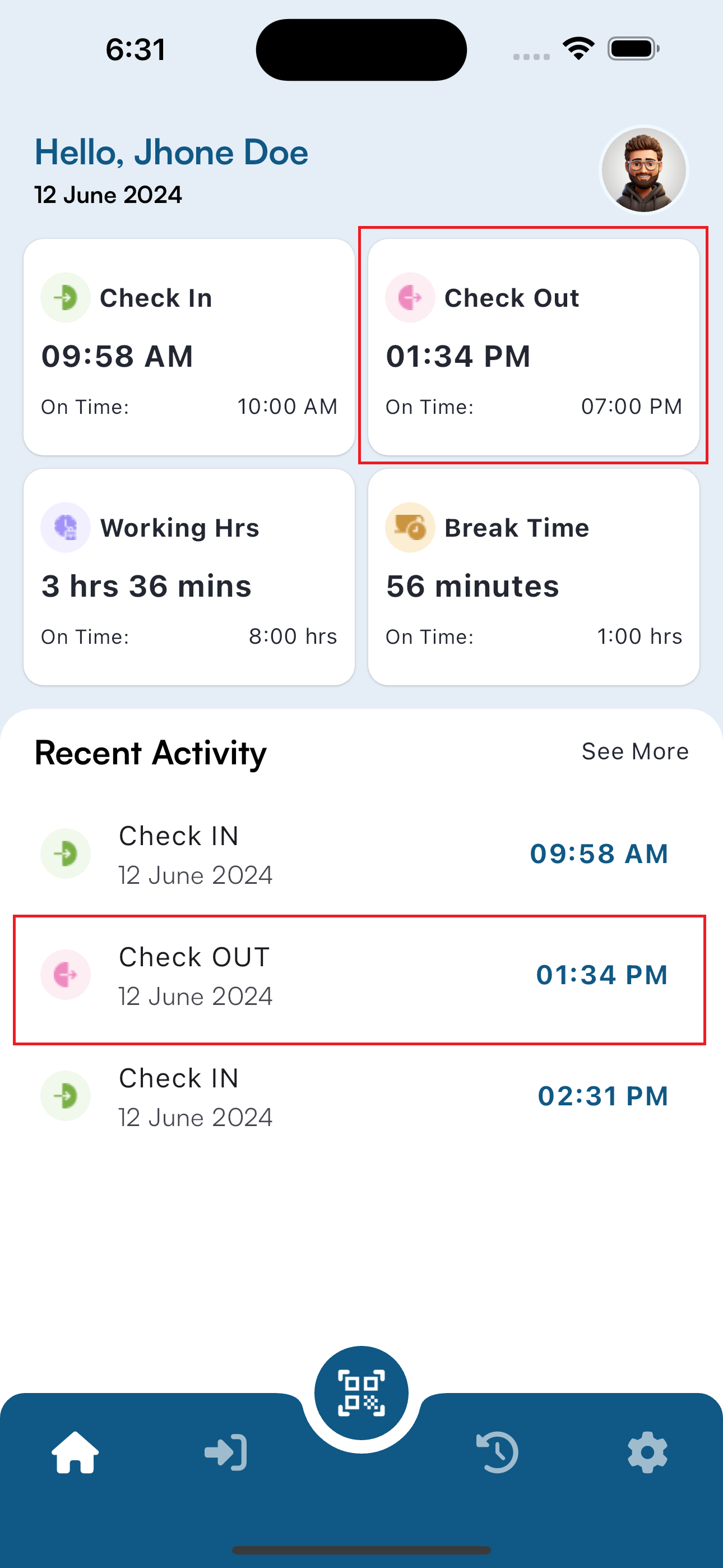
Check-Out Process :
- At the end of the workday, or when taking a break, staff members scan the QR code again to record their check-out time.
- The system will automatically recognize whether it is a check-in or check-out based on the previous scan.
Leave Screen
The leave screen offers detailed information about the
staff member's leave status and history for the current
month:
Leave Statics
- Total Leave Balance: The number of leave days remaining for the staff member.
- Approved Leaves: Total number of leaves approved by the company admin for the current month.
- Pending Leave Approvals: Leaves that are awaiting approval from the company admin.
- Canceled/Rejected Leaves: Leaves that have been rejected by the admin, along with reasons for rejection.
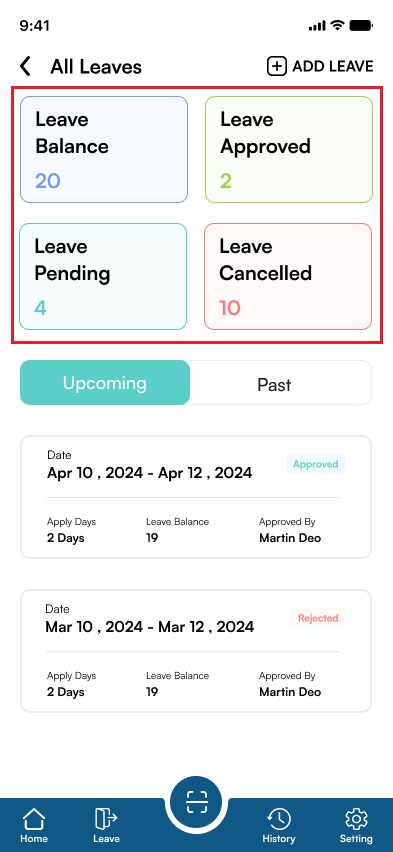
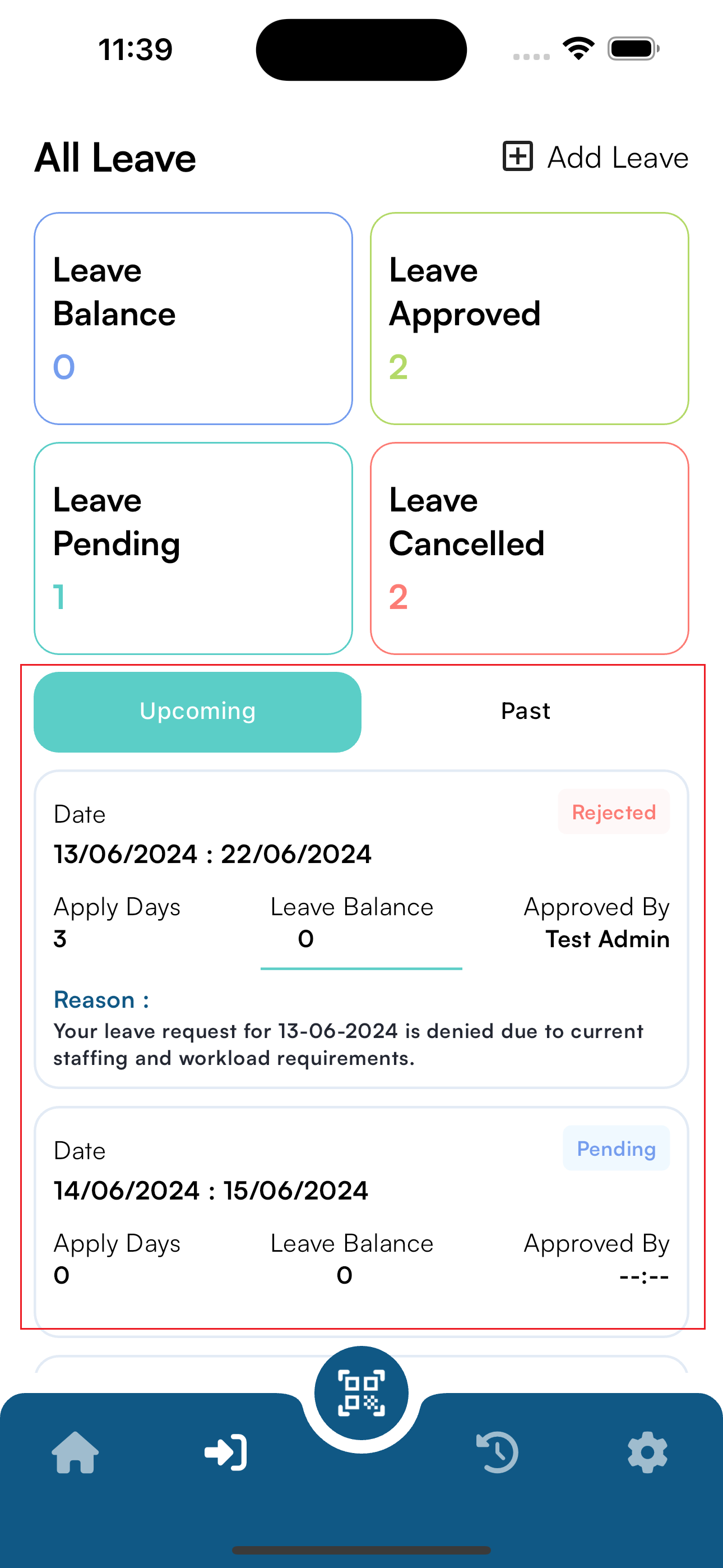
Upcoming Leaves
- View details of all upcoming leaves.
- Check the status of each leave, whether approved, pending, or rejected.
- If a leave is rejected, the specific reason provided by the admin will be displayed, helping staff understand the cause of rejection.
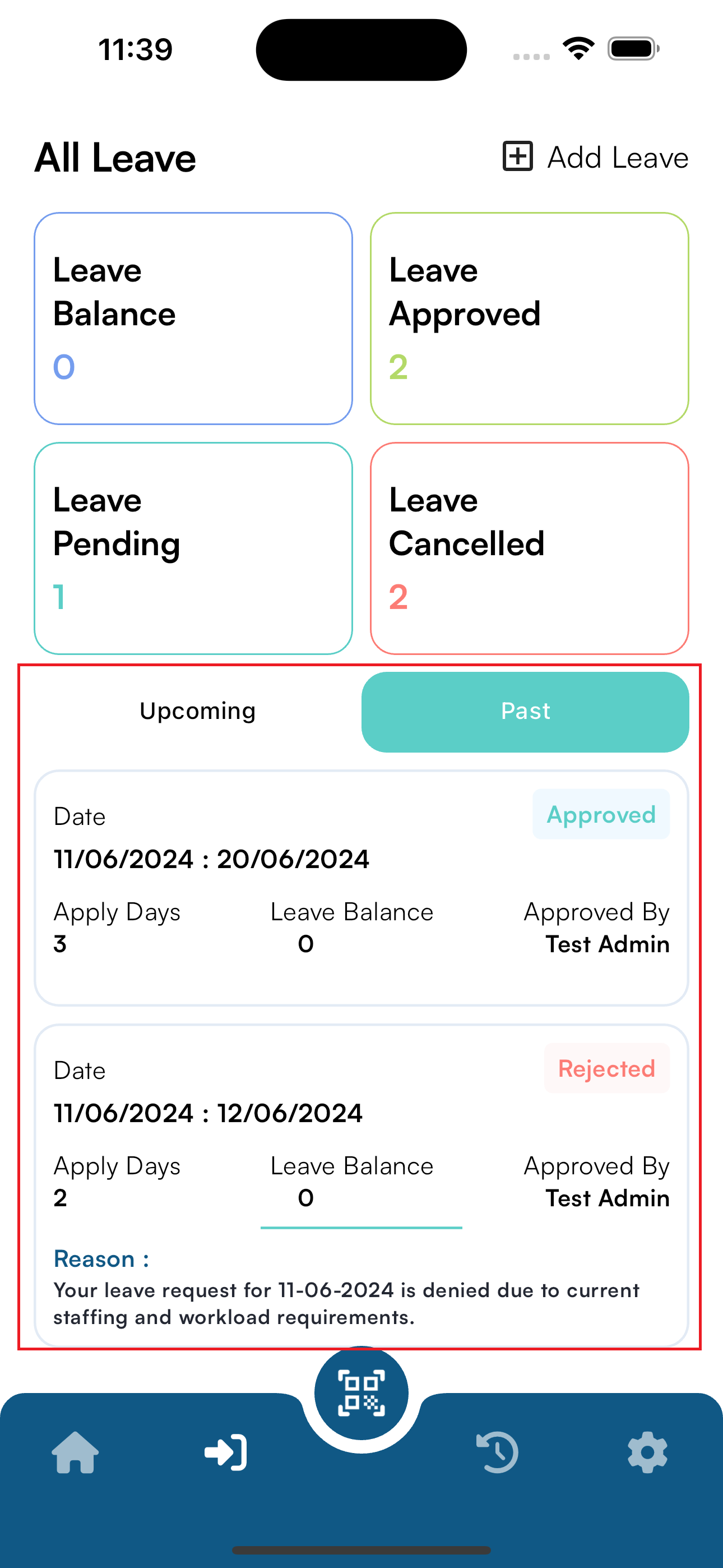
Past Leaves
- View a comprehensive list of all leave applications submitted in the past.
- Check the status and details of past leave approvals and rejections.
- Pending Leave Approvals: Leaves that are awaiting approval from the company admin.
- Canceled/Rejected Leaves: Leaves that have been rejected by the admin, along with reasons for rejection.
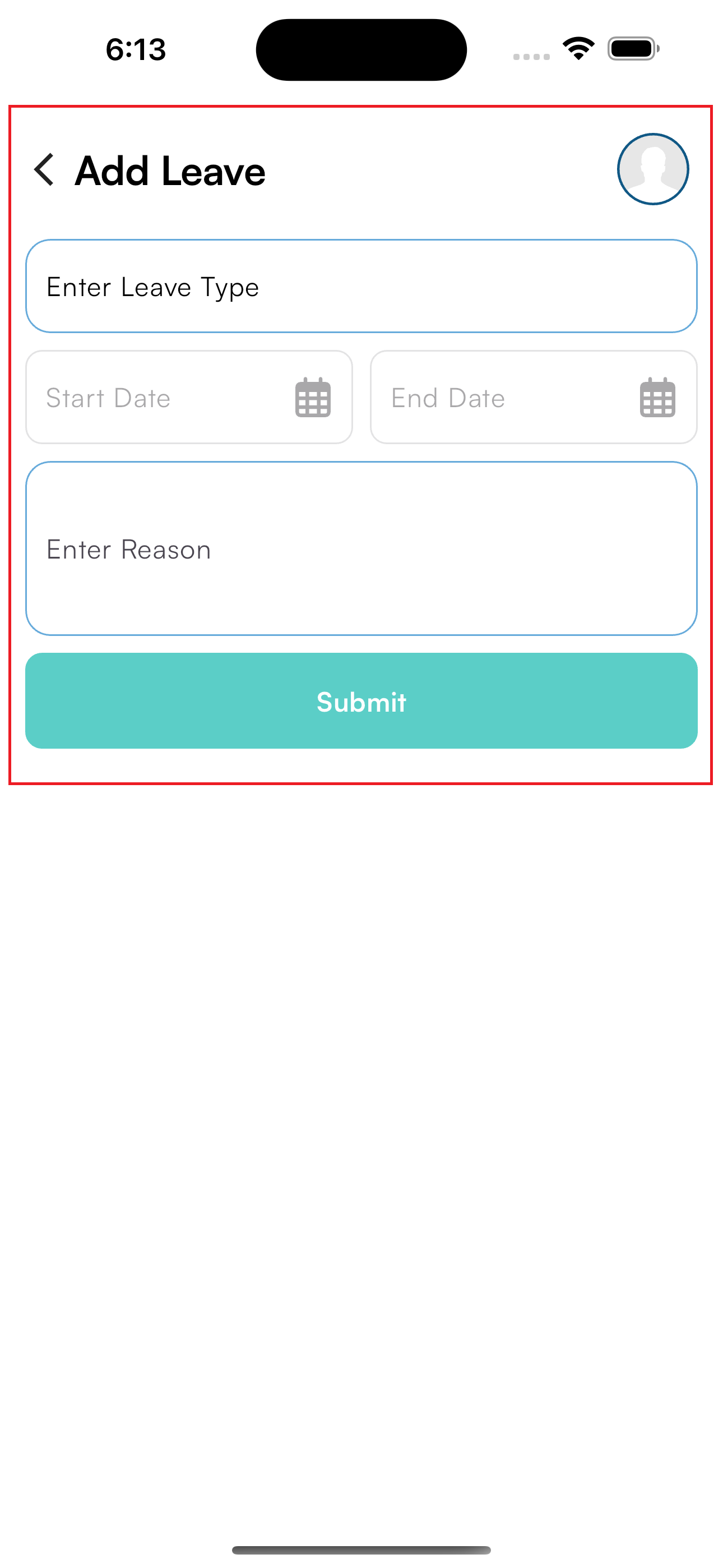
Add Leave Screen
Staff members can apply for leave using the Add Leave
screen, which includes:
Leave Application Form
- Leave Type: Select the type of leave (e.g., sick leave, vacation, personal leave) from a predefined list.
- Leave Start Date: Choose the start date for the leave.
- Leave End Date: Choose the end date for the leave
- Reason for Leave: Provide a reason for the leave request.
Submission and Approval
- Once the form is filled out and submitted, the company admin will receive an email notification regarding the leave request
- Staff members can track the status of their leave application directly from the app, ensuring transparency and timely updates.
History Screen
The History screen provides a detailed record of the staff
member's check-in and check-out history:
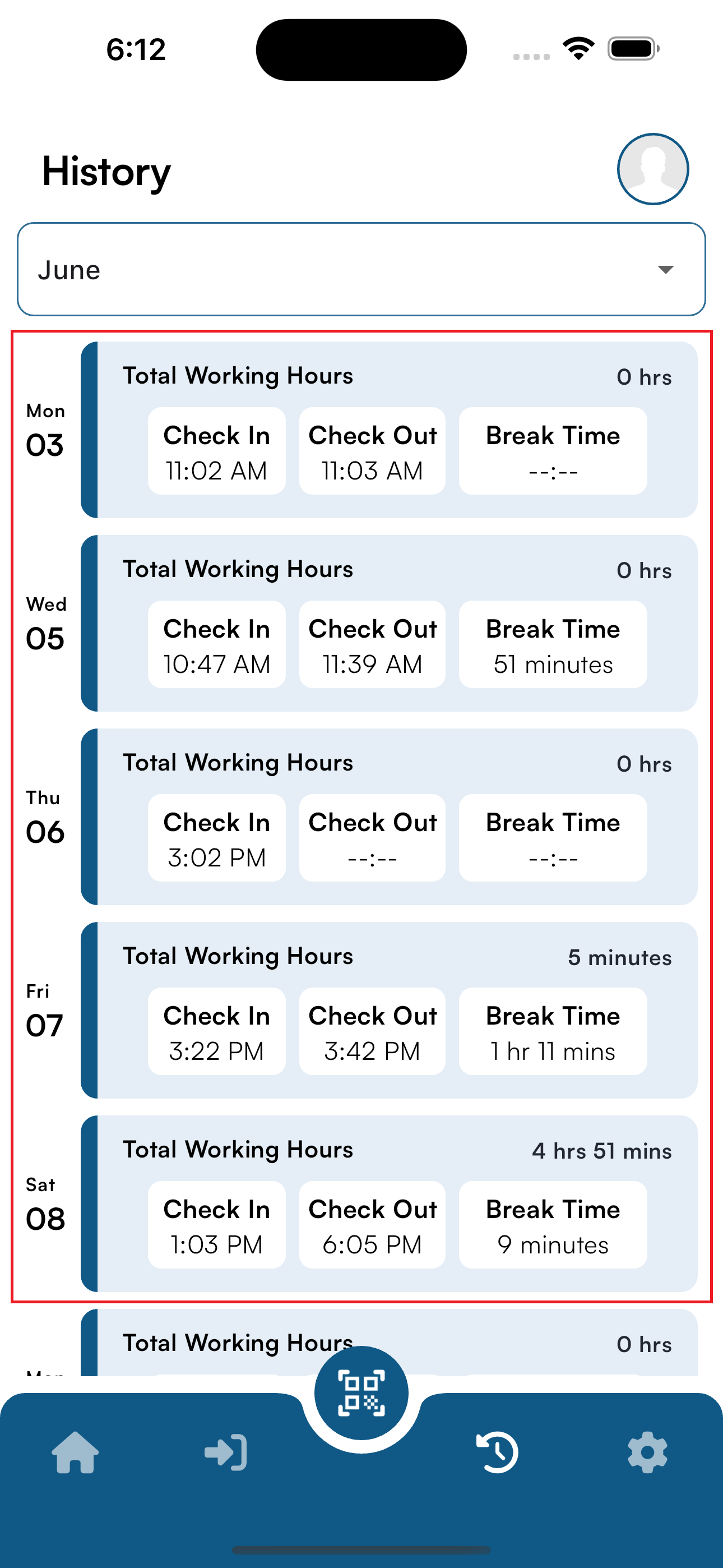
Current Month Overview :
- By default, the current month's history is displayed, showing each day's check-in and check-out times, total break time, and total worked hours.
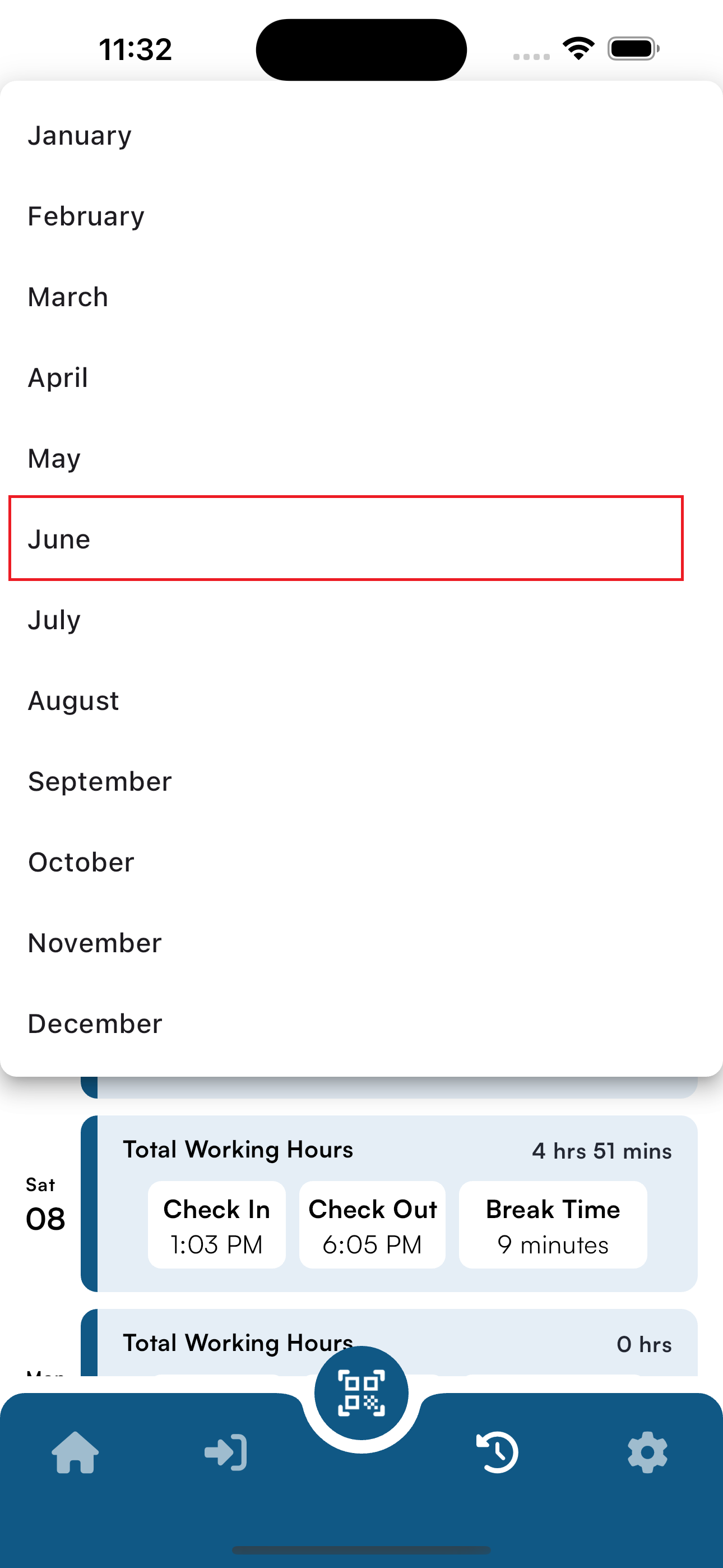
Historical Data :
- Staff members can view records from previous months by selecting the desired month from a dropdown menu.
- This feature helps staff members track their attendance and working hours over an extended period.
Settings/My Profile
The My Profile section allows staff members to manage
their personal information and preferences:
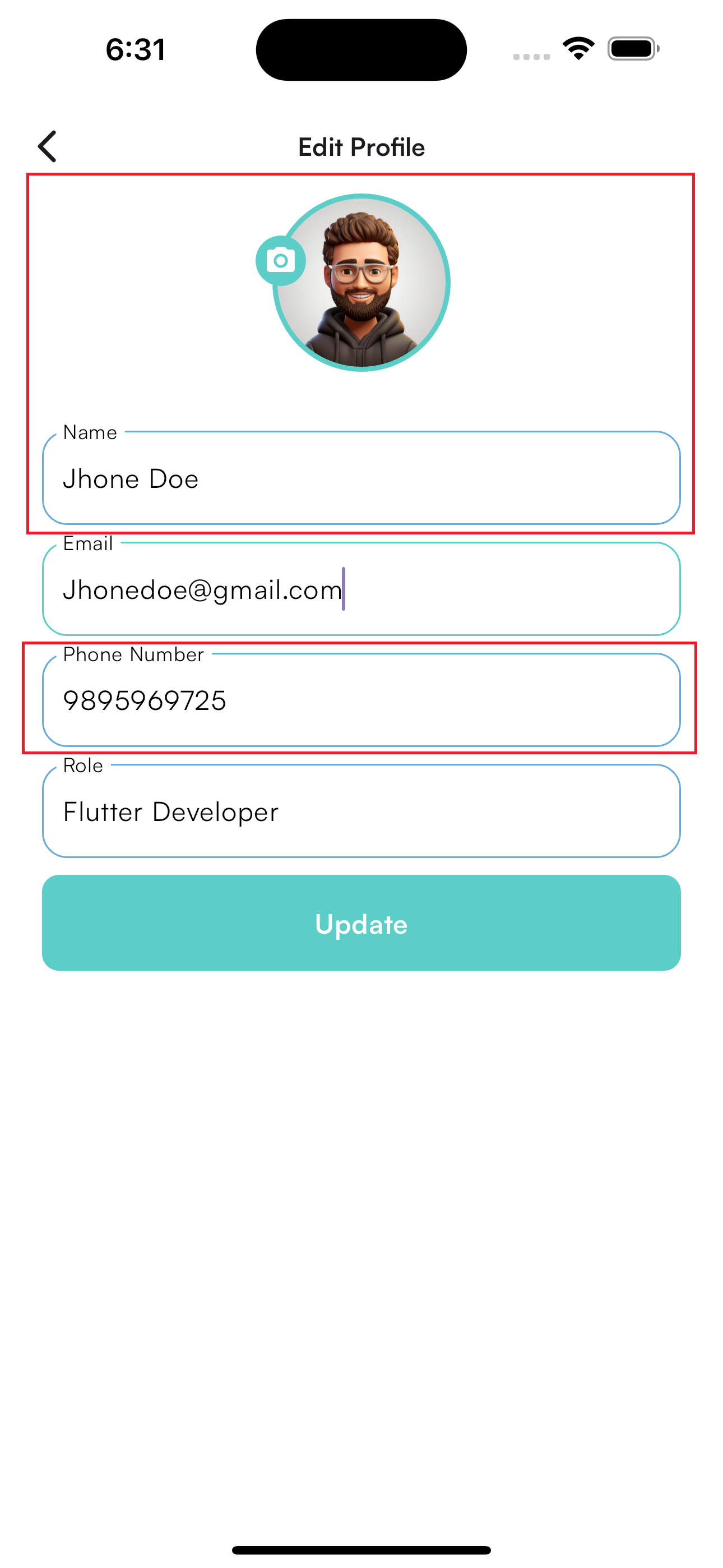
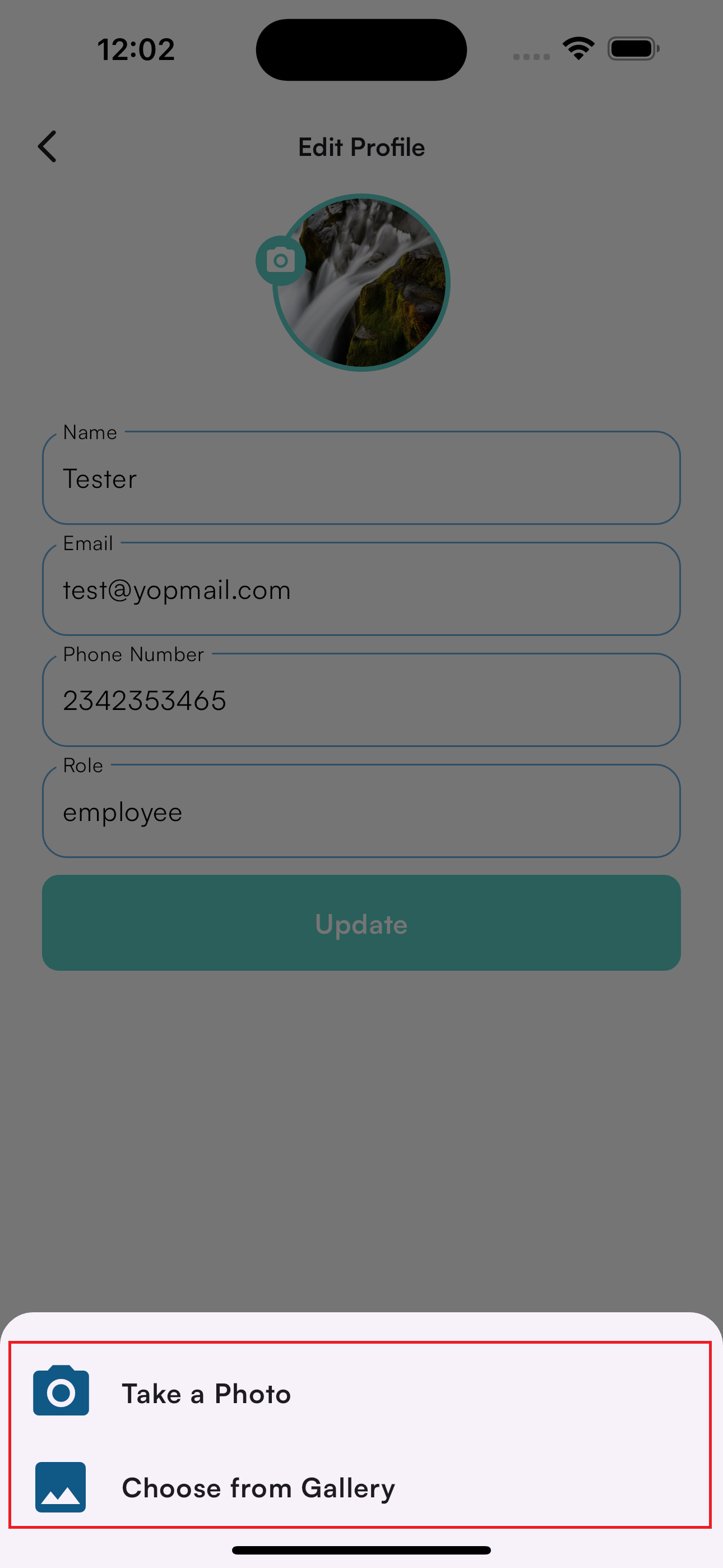
Editable Details :
- Staff members can update their profile information, such as name, contact details, and profile image.
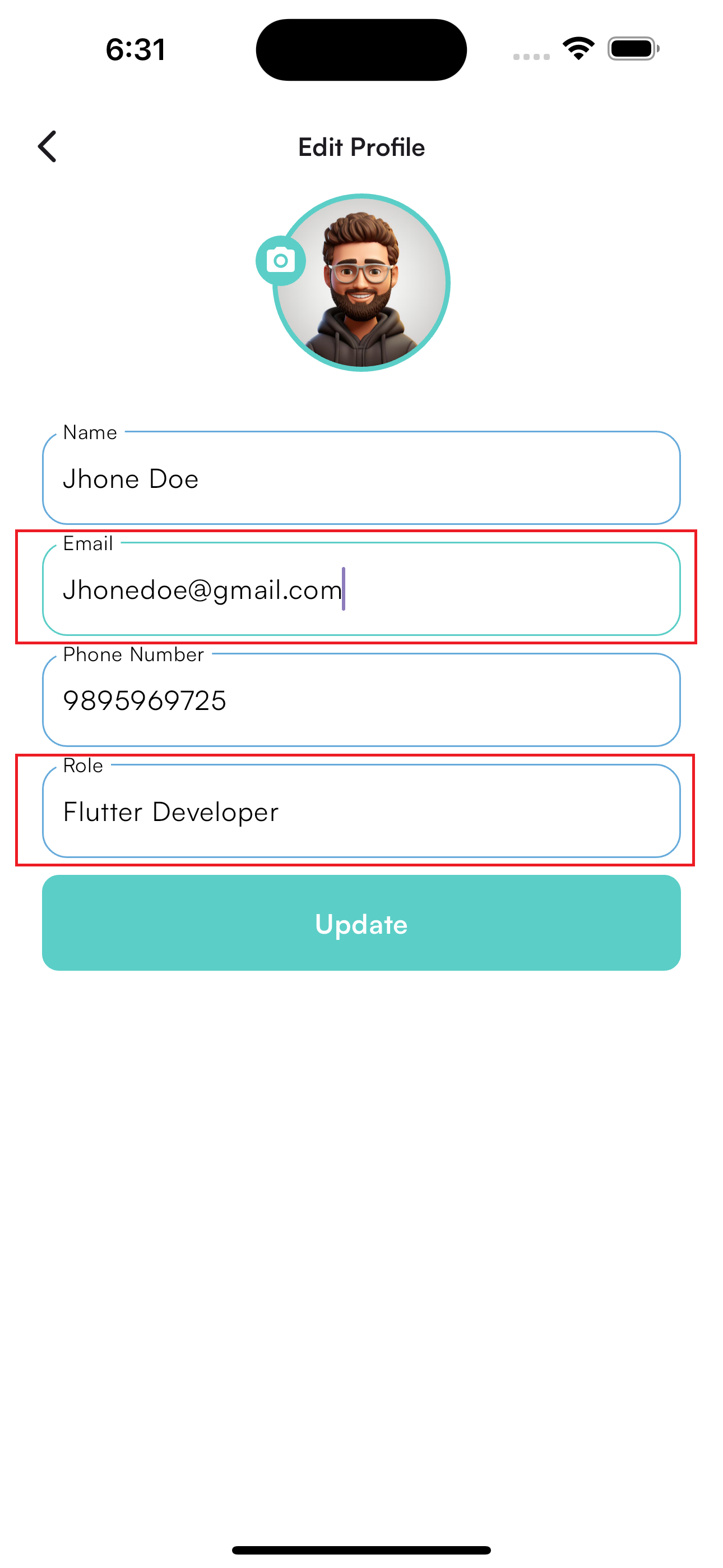
Non-Editable Fields
- These fields are set by the company admin and cannot be edited by the staff member.
Profile Customization
- Staff members can personalize their profile by uploading a profile picture and adjusting other personal details
Settings/Change Password
Staff members can change their password through this
secure process:
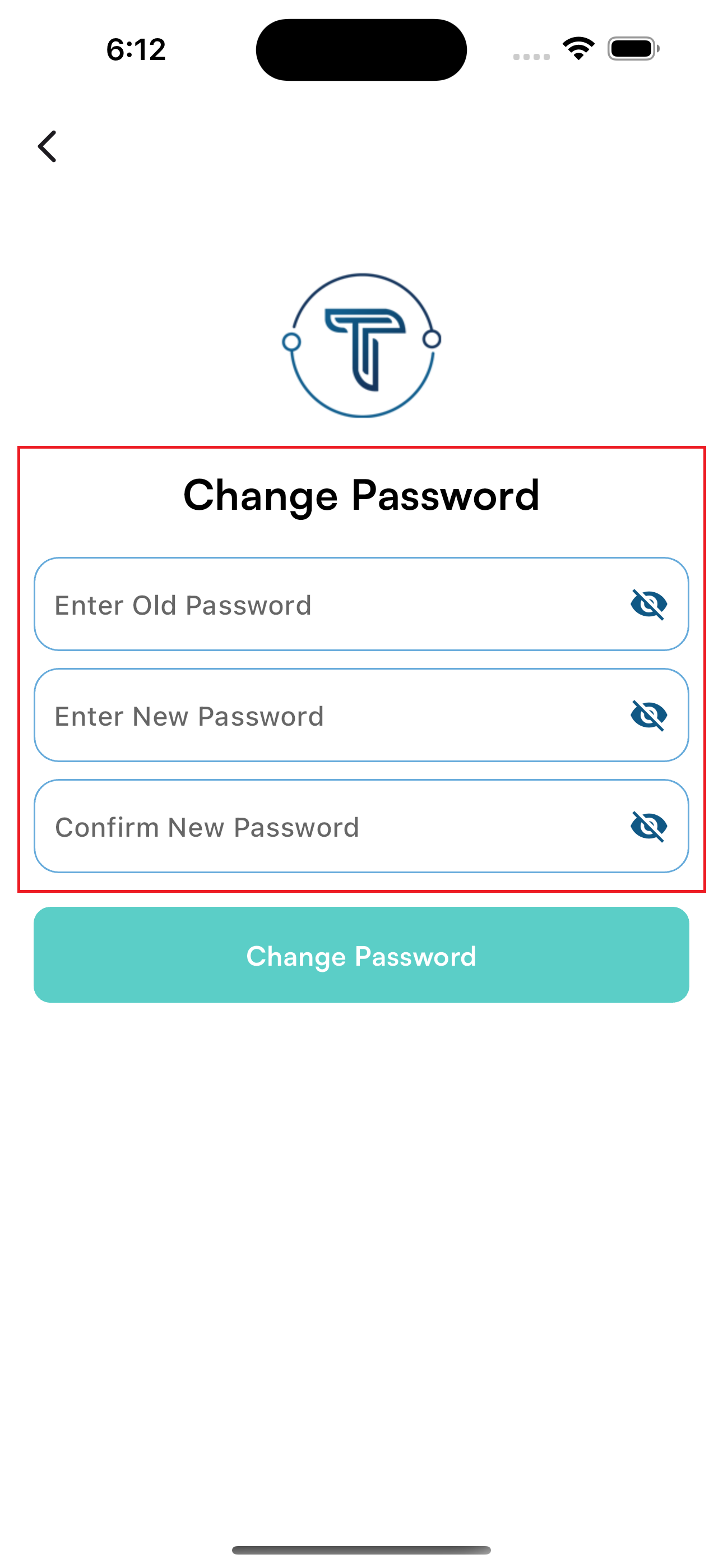
Password Change Form :
- Old Password: Staff members must enter their current password for validation
- New Password: Enter the new password.
- Confirm New Password: Re-enter the new password to confirm.
Validation and Update :
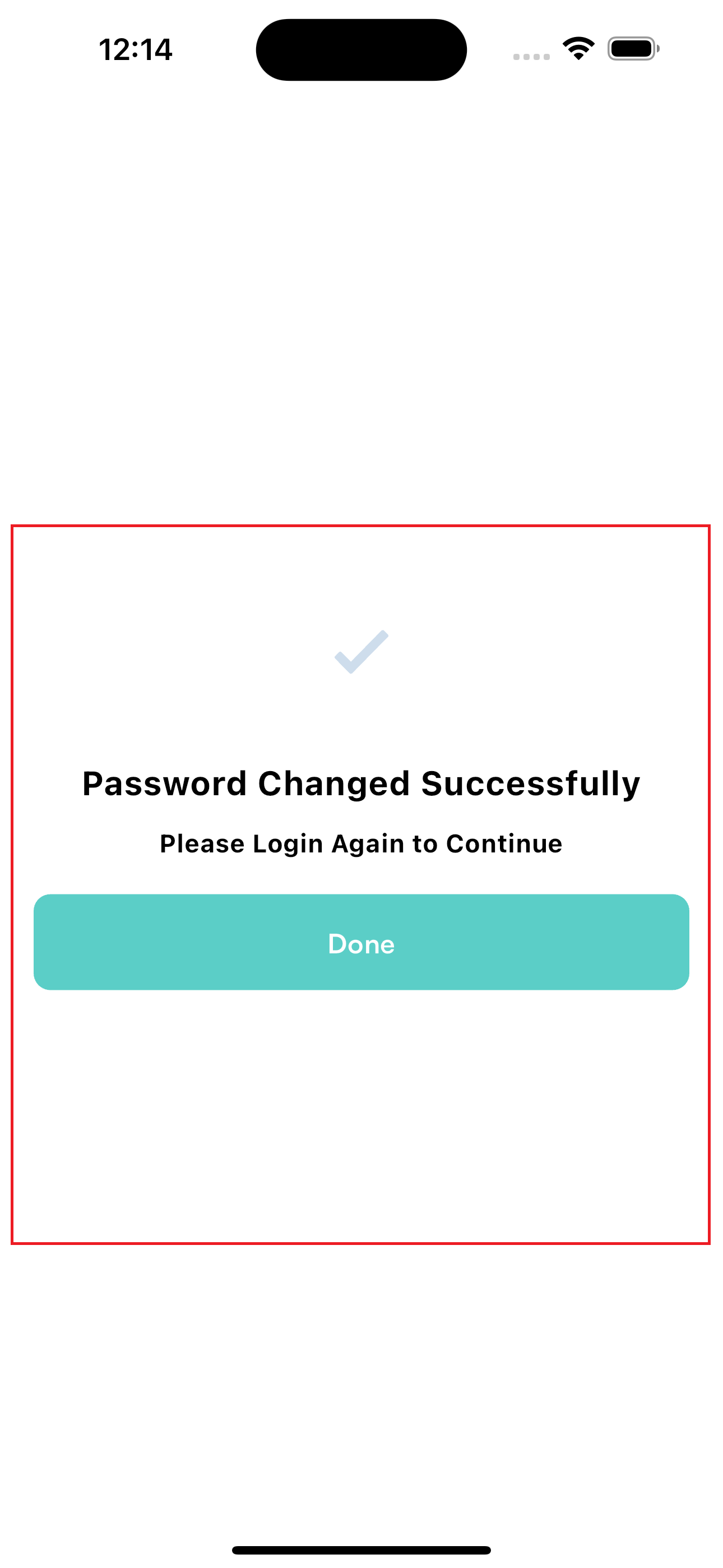
- The system will validate the old password before updating to the new password.
- Once validated, the password will be successfully changed, and staff members will be notified of the update.
Settings/Holiday
The Holiday screen displays the list of holidays set by
the company admin:
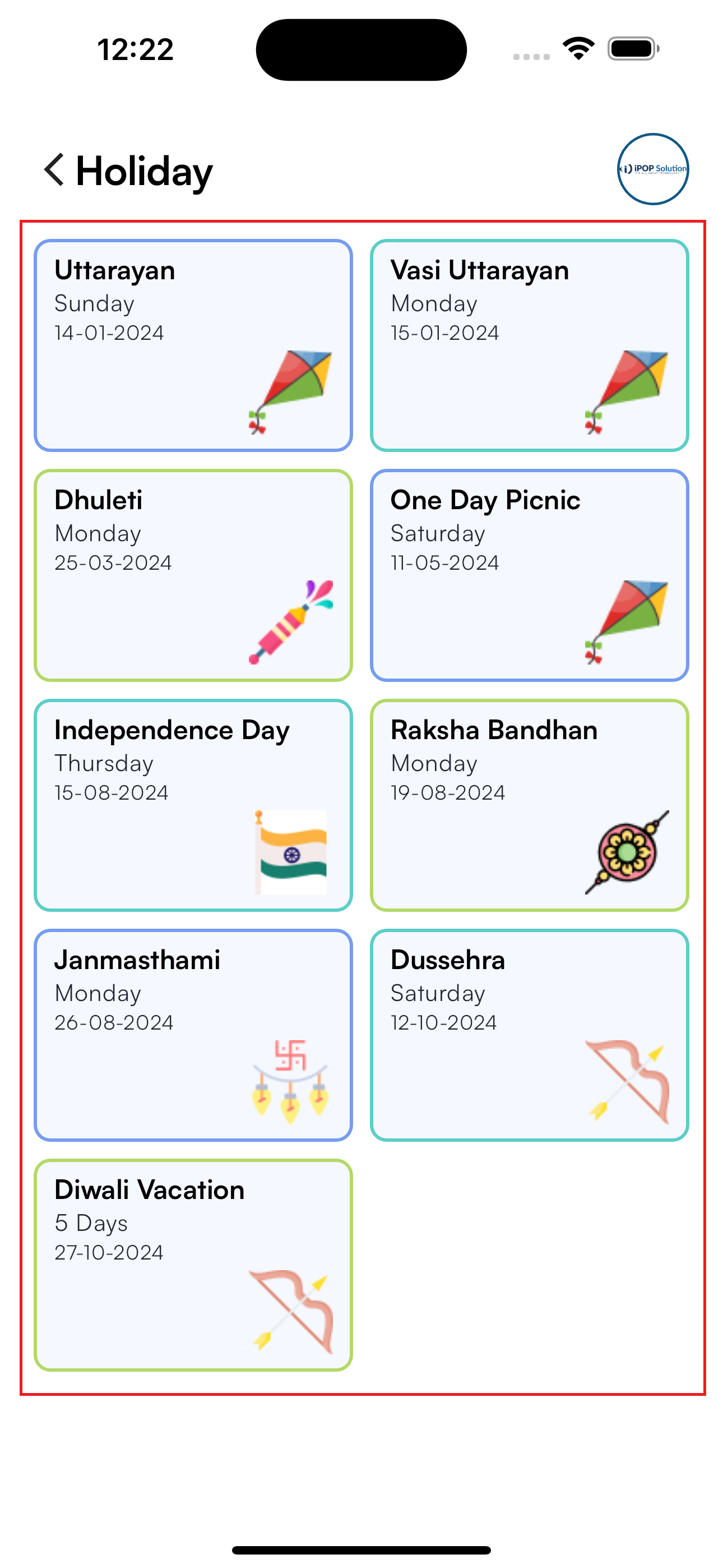
Holiday List
- A comprehensive list of all company holidays is provided.
- Staff members can view details of each holiday, including dates and descriptions.
Holiday Notifications :
- Staff members will receive notifications about upcoming holidays, ensuring they are aware of non-working days in advance.
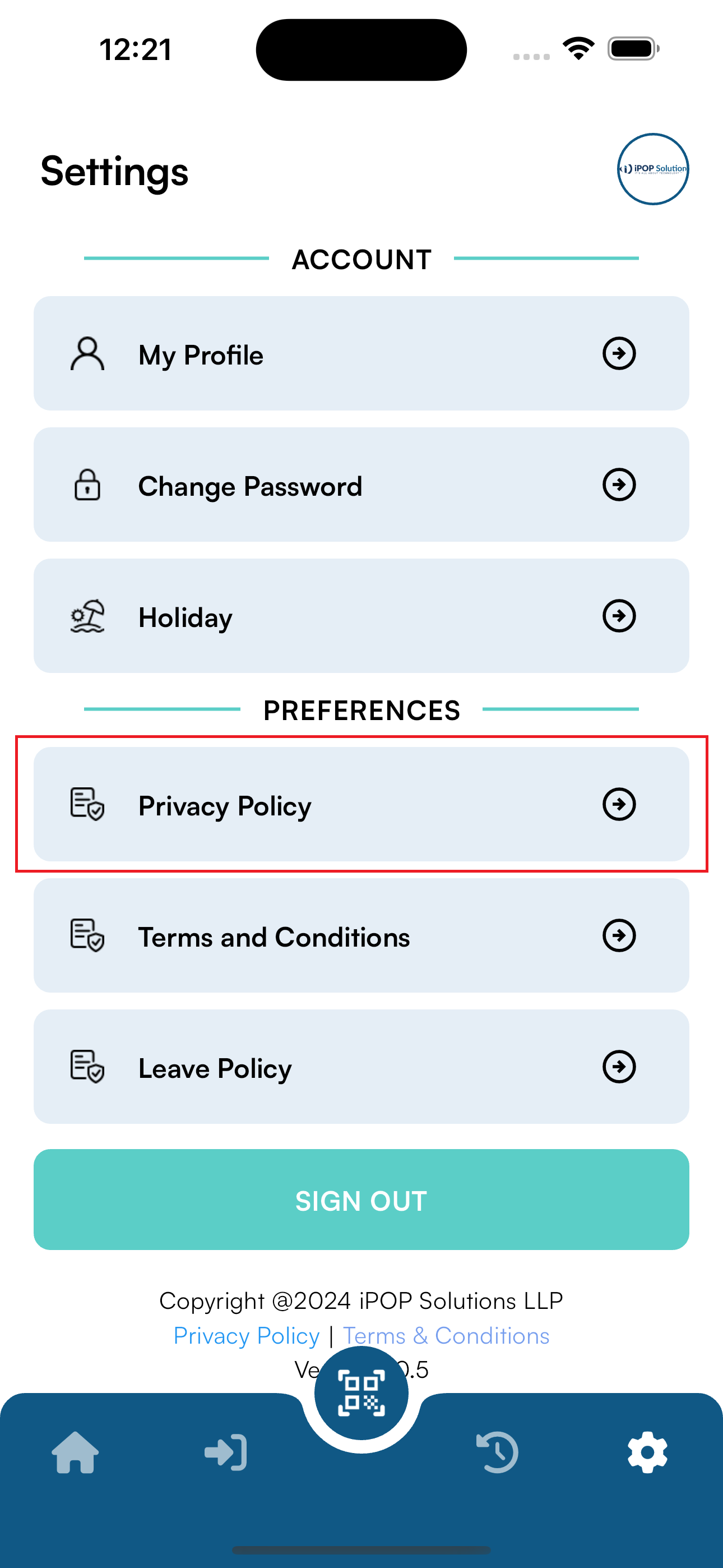
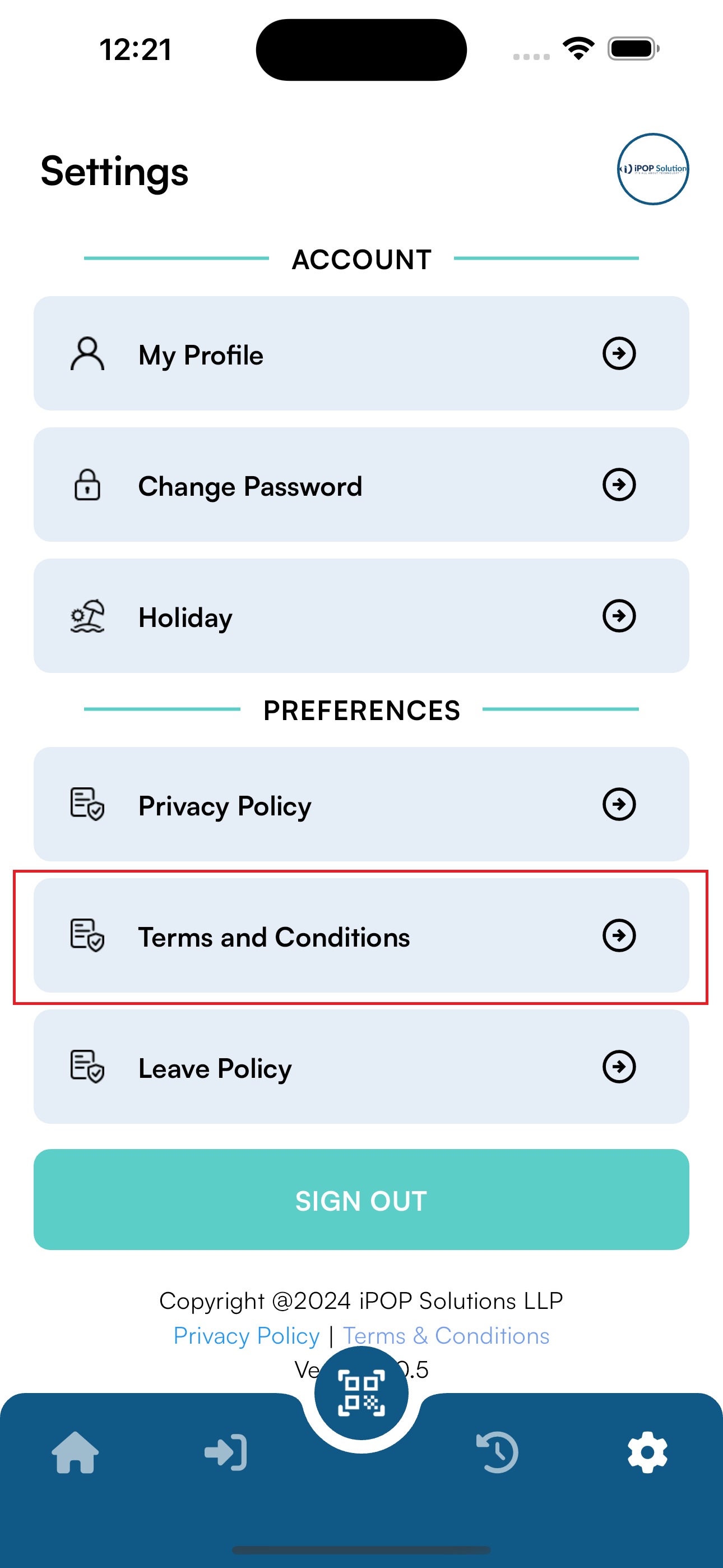
Settings/Preferences
The Preferences section includes company policies and
other important information:
Company Policies
- Leave Policy: Details about the company's leave policy, including types of leaves, eligibility, and application process.
- Salary Policy: Information about salary structure, payment schedules, and other related details.
Policy Updates
- Any updates or changes to company policies made by the admin will be reflected in this section, ensuring that staff members are always informed of the latest policies.