Track Track Tide App - Company (Admin) Manual
Introduction
Welcome to Track Tide, the ultimate mobile application
designed to streamline and enhance employee attendance and
leave management for companies of all sizes. Built on the
robust Flutter framework, Track Tide offers a
user-friendly interface and powerful features that ensure
both staff and administrators can efficiently manage daily
operations.
With Track Tide, employees can effortlessly check in and
out of the office using a simple QR code scan, ensuring
accurate and real-time attendance tracking. The app's
dashboard provides an at-a-glance view of key statistics,
including working hours, break times, and recent
activities, empowering staff to stay informed and
organized throughout the workday.
For company administrators, Track Tide simplifies the
complexities of leave management by providing detailed
insights into leave balances, approvals, and rejections.
The app also supports seamless communication between staff
and management, with automated notifications for leave
requests and approvals.
Track Tide goes beyond basic attendance tracking by
offering features such as location-based QR code scanning,
comprehensive attendance history, and customizable
settings. Staff members can easily update their profiles,
change passwords, and stay informed about company policies
and holidays.
Experience the future of employee management with Track
Tide, where efficiency meets convenience, and every
check-in counts.
Onboarding Screen
The onboarding screen is the first step for users who wish
to register their company with Track Tide. It provides a
seamless and intuitive process to ensure that company
registration is straightforward and hassle-free.
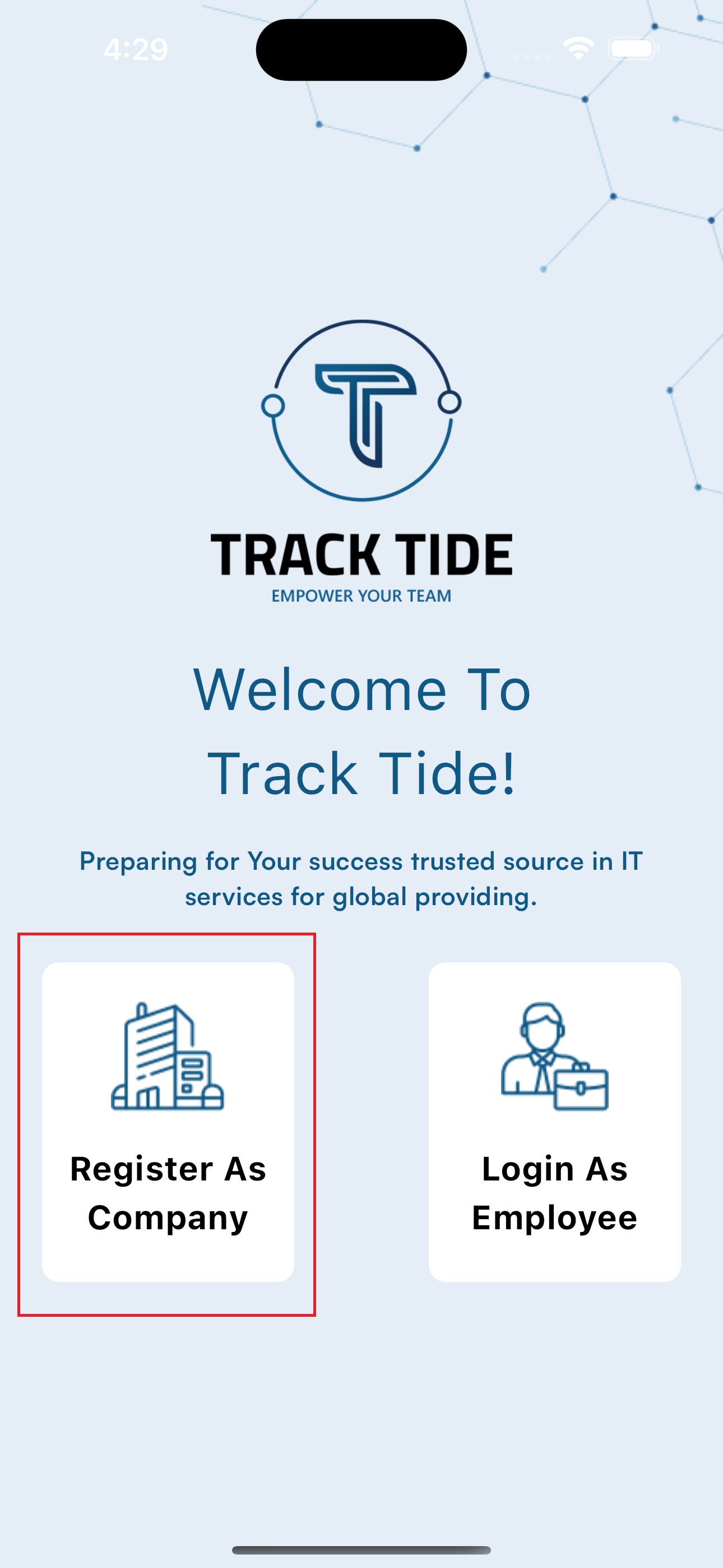
Register as Company
- Selecting the Option : New users can select the "Register as Company" option to begin the registration process. This step is essential for adding a company to the Track Tide system.
- Providing Company Details : The registration form requires users to input essential company details. These include:
- Company Name : The official name of the company.
- Address : The physical location of the company, including street address, city, state, and zip code.
- Contact Information : The email and phone number of the company’s main contact person. This information is crucial for communication and notifications.
- Location Details : The latitude and longitude coordinates of the company’s location, which are necessary for enabling location-based features within the app.
Form Submission and Approval Process
- Form Submission : Once all required details are entered, users submit the registration form. It is essential to ensure that all information provided is accurate and complete to avoid delays in the approval process.
- Approval Process : After submission, it typically takes 1-2 business days for the approval of the company registration. This period allows the Track Tide team to verify the details provided and ensure compliance with the platform’s standards.
- Successful Registration : If the registration is approved, the company is added to the Track Tide system. The contact person will receive an email with the login details for the company admin portal. The admin can then start adding employees and managing company settings.
- Failed Registration : If the registration request is rejected, the contact person will receive an email detailing the reasons for rejection. They can correct the issues and resubmit the registration form.
Dashboard
The dashboard serves as the central hub for company
admins, providing an overview of the company's daily
activities and essential statistics. It is designed to
give admins a clear and concise summary of the most
important data, allowing them to make informed decisions
quickly and efficiently. The dashboard includes the
following components:
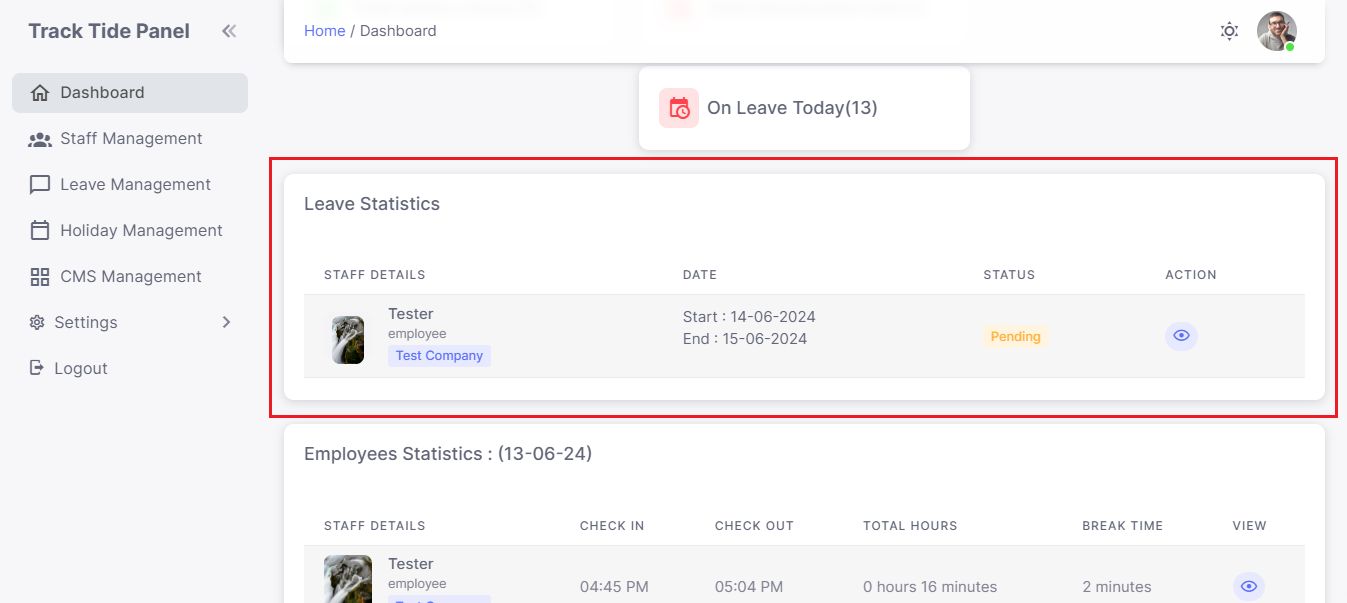
Counter Widgets :
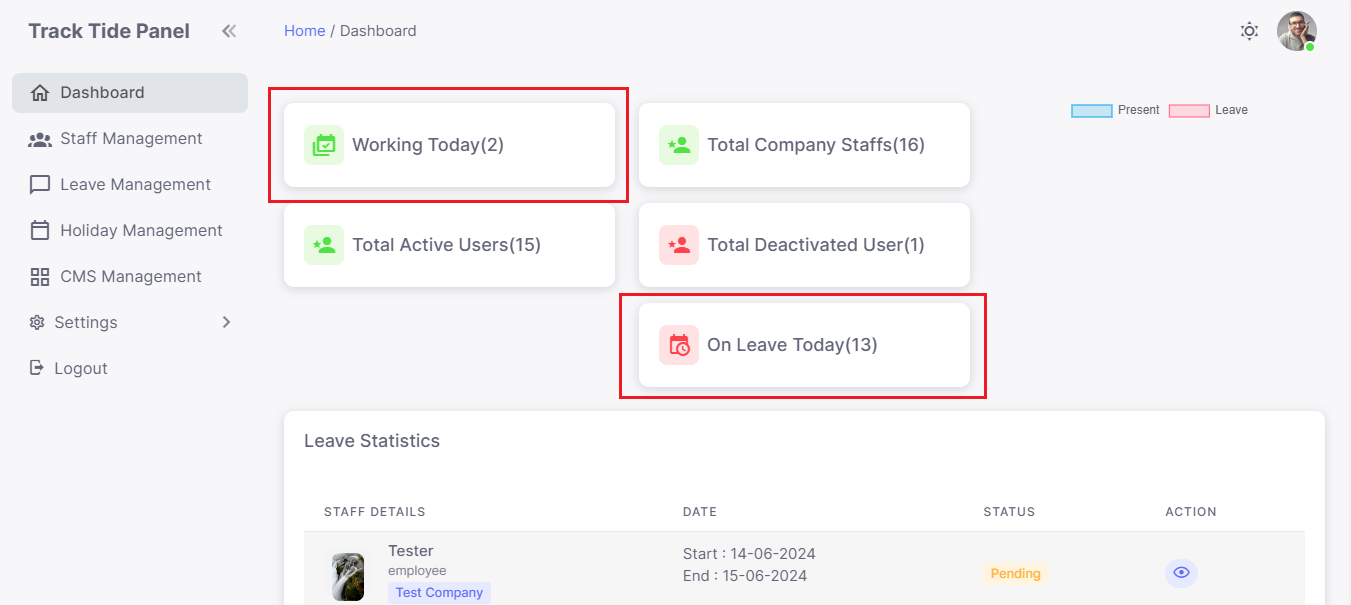
- Counter widgets provide a snapshot of the current status within the company. These widgets include:
- Working Today : Displays the number of staff members who are currently working. This widget helps admins understand the active workforce at any given time.
- On Leave Today : Shows the number of staff members on leave today. This is crucial for planning and ensuring that there are enough staff members available to meet the company’s needs.
- Total Active Staff : Displays the total number of active staff members. This count includes all staff who are currently employed and not deactivated.
- Total Deactivated Staff : Displays the total number of staff members who have been deactivated. Deactivated staff are those who are no longer part of the company’s workforce and cannot access the app.
Chart
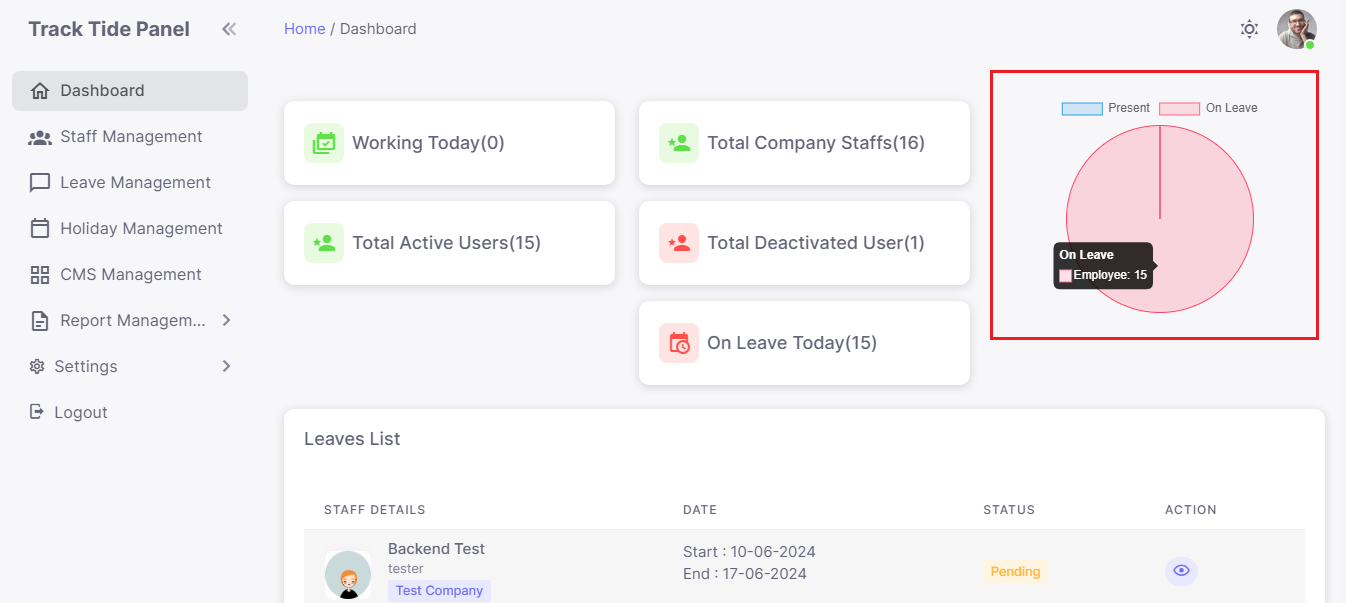
- The chart provides a visual representation of attendance data, making it easy to spot trends and patterns.
- Today Present Staff Total : A bar or pie chart showing the total number of staff members present today. This visual aid helps admins quickly assess attendance levels.
- Today On Leave Staff Total : A chart showing the total number of staff members on leave today. This helps in understanding the proportion of staff unavailable due to leave.
Leaves List :
- The leaves list is an essential tool for managing leave requests. It includes:
- Leave Requests : A comprehensive list of all leave requests sent by staff members. This list allows admins to keep track of all pending and processed leave requests.
- Details Popup : By clicking the view button, a popup appears displaying the details of the leave request. This includes the reason for the leave, the duration, and any additional notes provided by the staff member. From this popup, the company admin can approve or reject the leave and provide a reason if rejected
- Notifications : Once a leave request is approved or rejected, the staff member is notified via the app. This ensures that staff members are kept informed about the status of their leave requests.
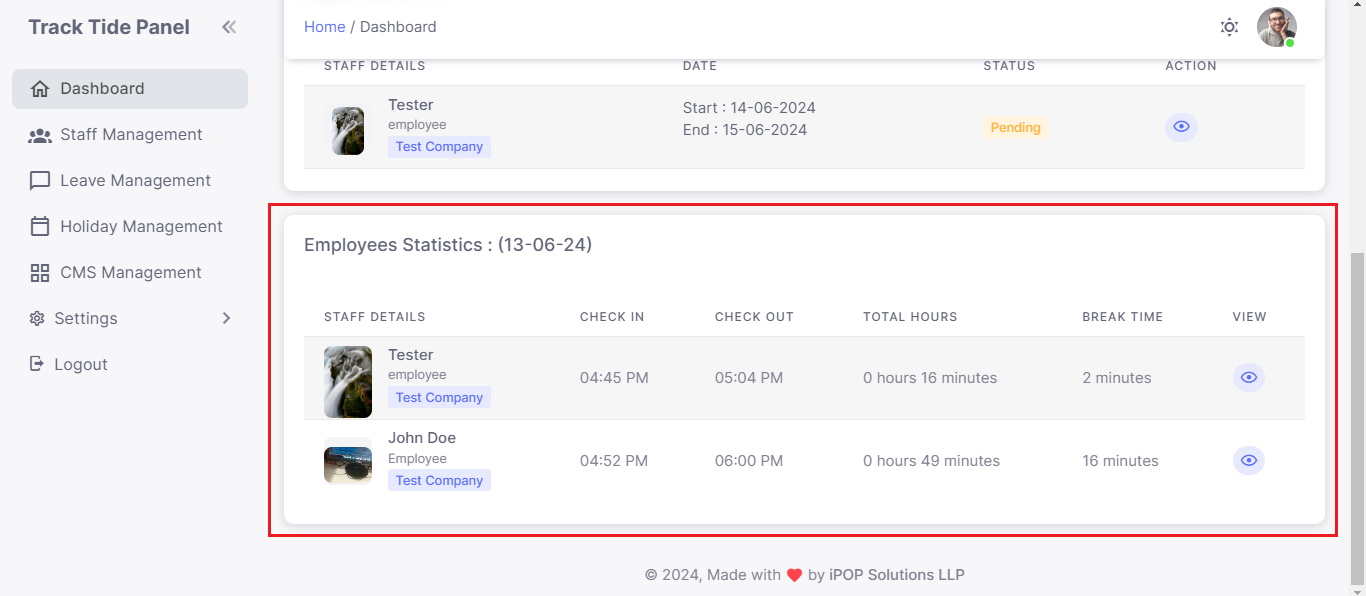
Employees Attendance List :
- This section provides detailed attendance records for each staff member.
- Today’s Attendance : Company admins can view today’s attendance details for each user. This includes check-in and check-out times, total working hours, and break times.
- Detailed View : By clicking on the view icon, admins can see more detailed attendance records for individual staff members. This includes a complete history of attendance for the day, making it easy to spot patterns or discrepancies.
Staff Management
The Staff Management section is where company admins can
manage all aspects of their staff. This includes adding
new staff members, editing existing records, and managing
staff statuses.
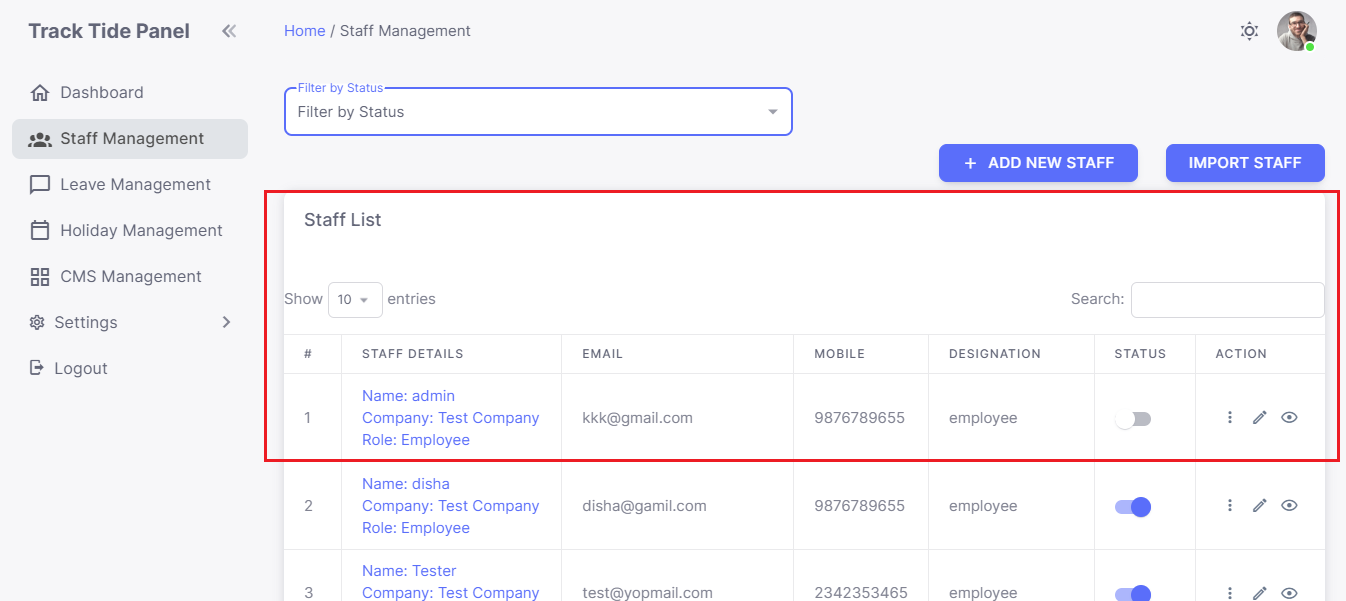
Listing
- Manage Staff : The listing page displays all staff members in the company. From here, admins can view and manage staff details.
- Status Filters : Admins can apply different status filters to view records based on active, inactive, blocked, etc. This makes it easy to find specific groups of staff members.
- Global Search : The search bar allows admins to find staff members by name, email, or phone number. This feature is useful for quickly locating specific records.
- Block/Unblock Staff : Admins can toggle the ON/OFF switch to block or unblock staff members. Blocked staff cannot log in to the app. This is useful for managing staff who may be on extended leave or are no longer with the company.
- Actions : The dropdown in the action column provides options to delete staff members and their related data. This is a permanent action and should be used with caution.
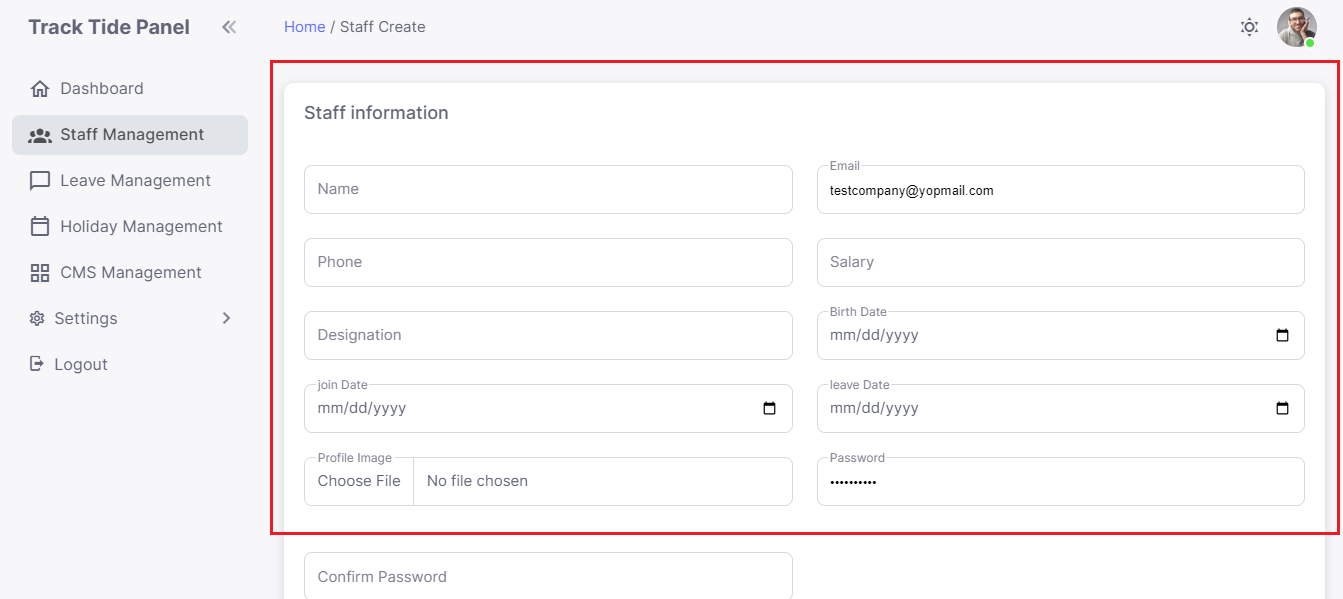
Create Staff
- To add a new staff member, admins click the create staff button. This opens a form where admins can enter details such as name, email, phone number, and designation. Once added, staff members will get access to the Track Tide app and can begin using it immediately.
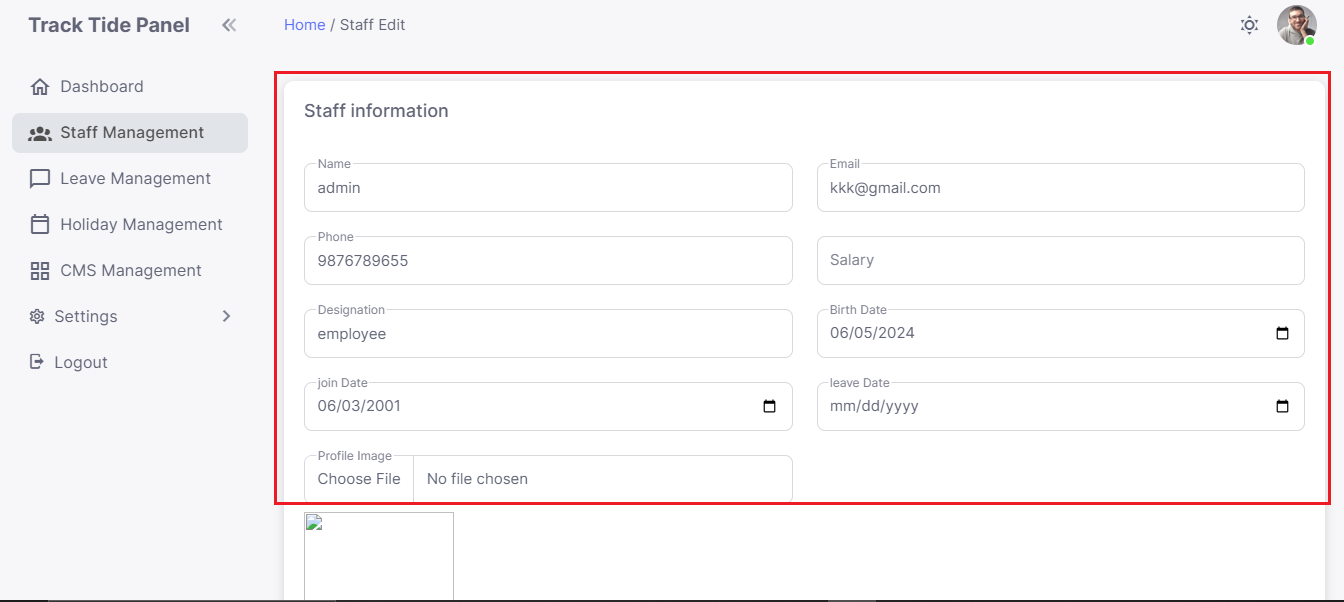
Edit Staff
- Admins can modify the basic details of staff members, such as email, designation, and contact information. This is useful for updating records when there are changes in staff roles or contact details.
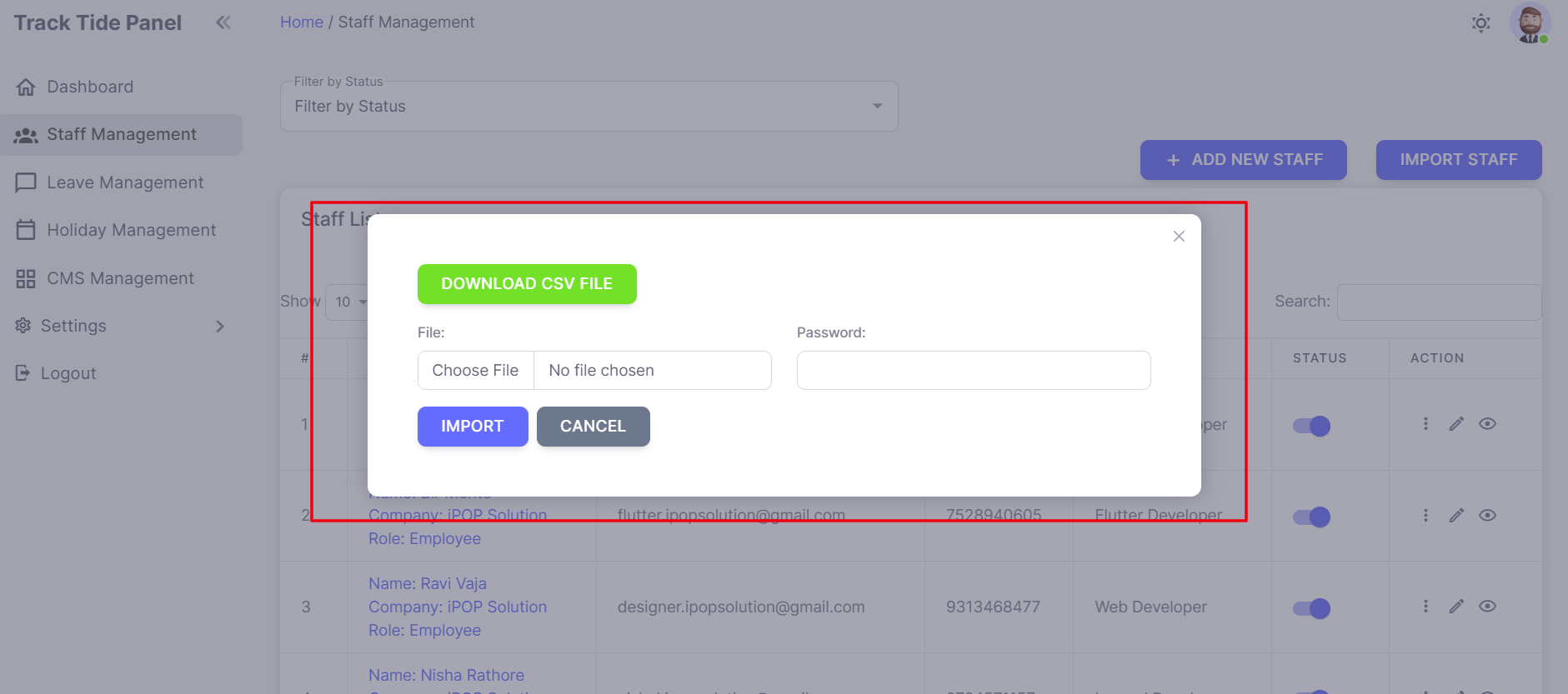
Bulk Import
- The import staff feature allows for the bulk addition of staff members. Admins can download a sample CSV, fill in the staff details, and upload it. This process includes setting a default password for the new staff members. Bulk importing saves time and ensures that large numbers of staff can be added quickly and efficiently.
Staff Last Month Details
- This section provides a detailed overview of staff attendance and leave for the previous month.
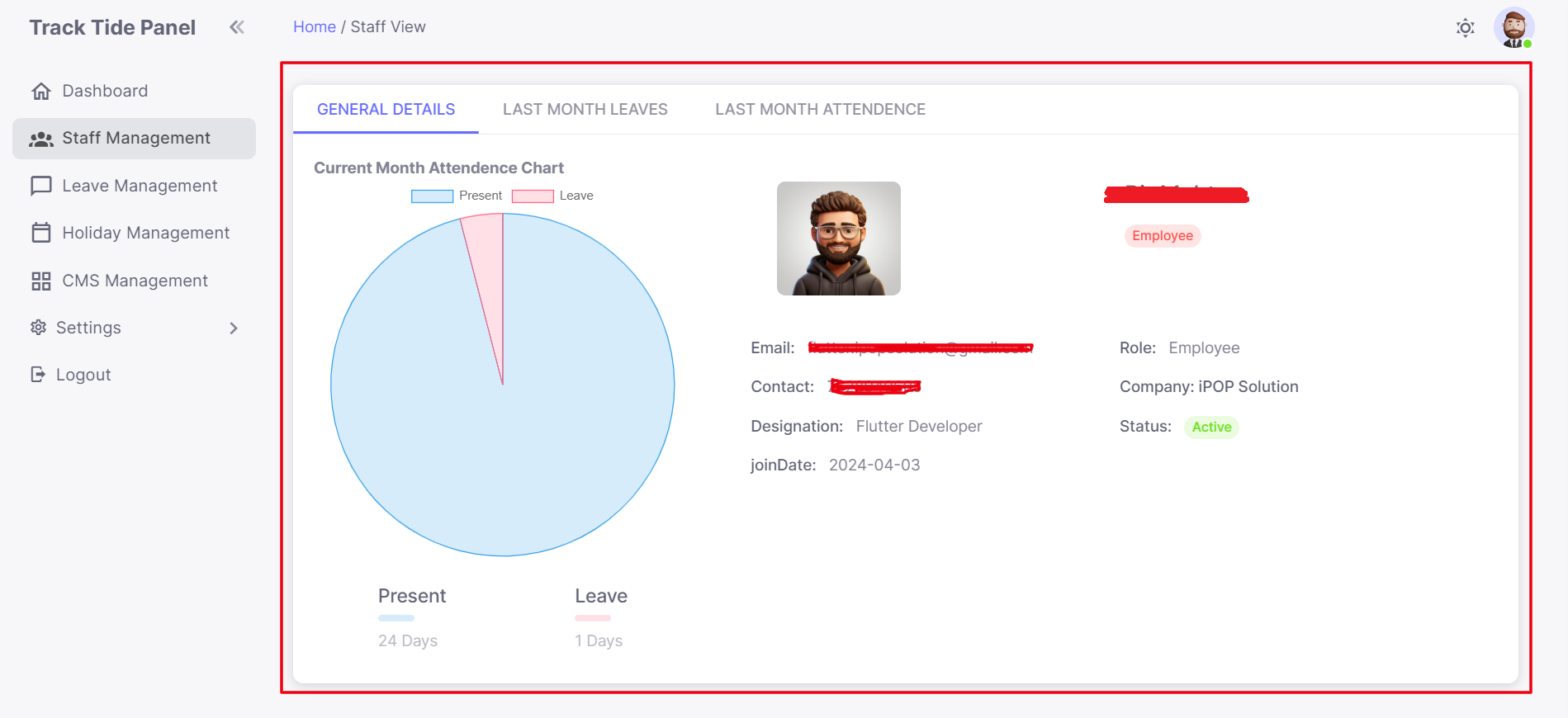
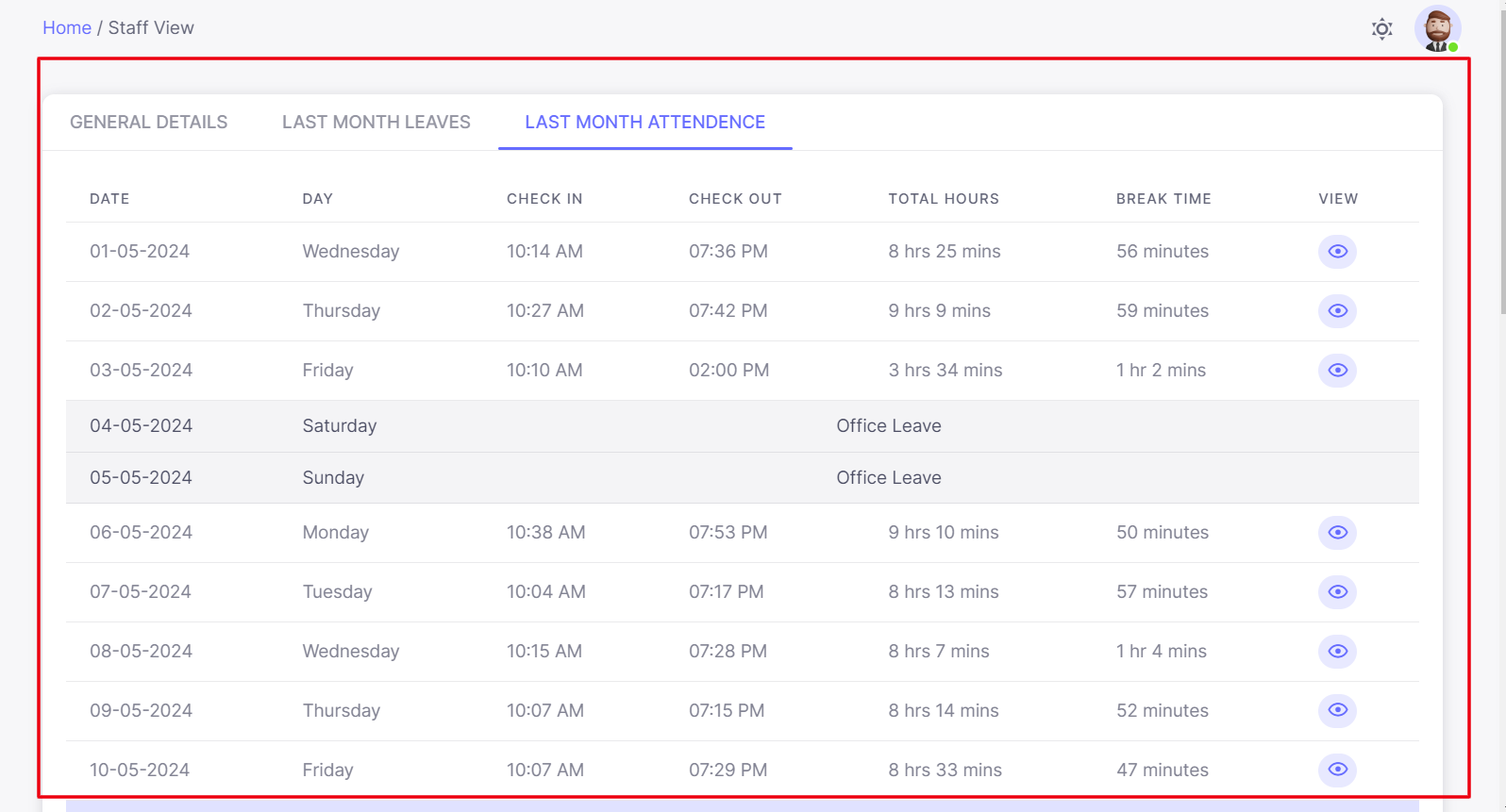
- Monthly Overview: View staff-wise last month’s details in three tabs:
General Details :
- Includes charts showing last month’s presence and absence details, along with general staff details like name and phone number.
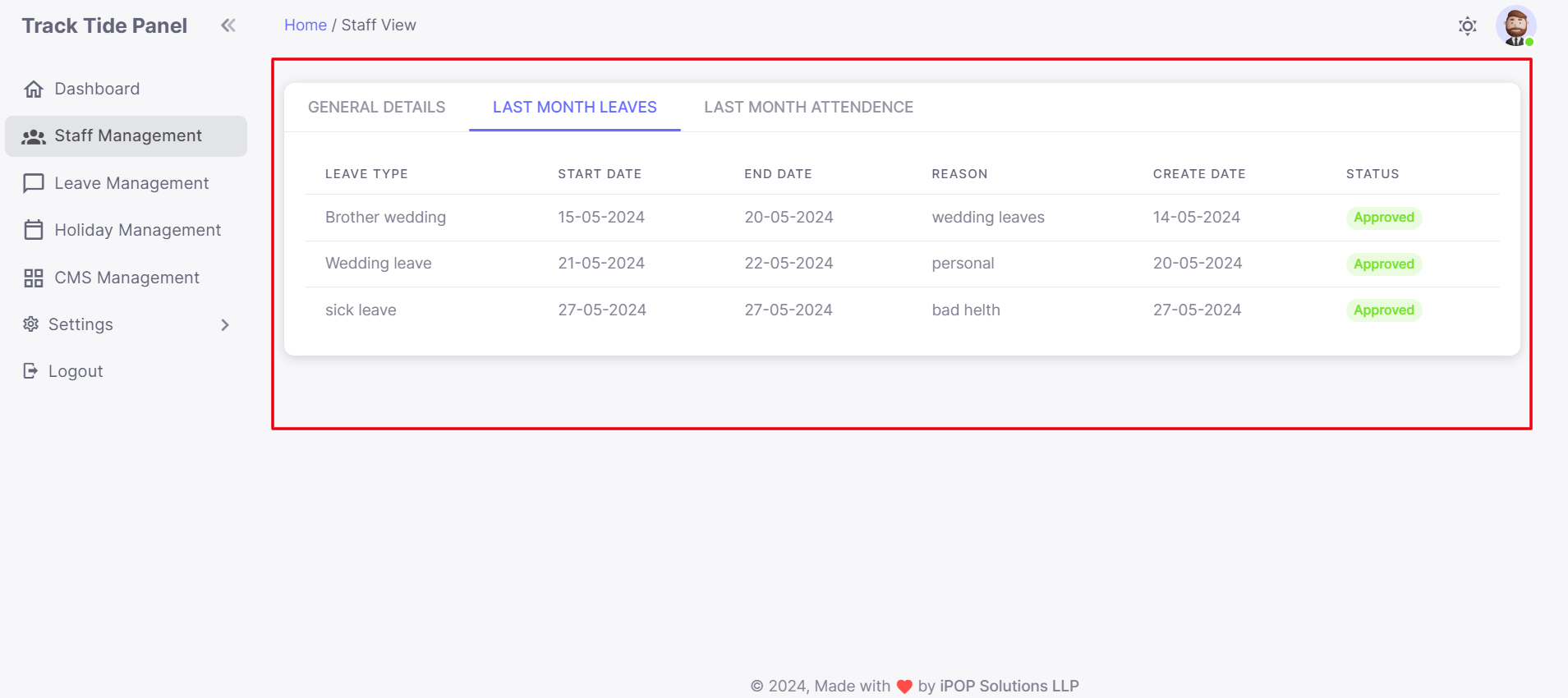
Last Month’s Leave:
- Lists all leave requests sent by the staff member in the last month. This helps admins understand the leave patterns and manage future leave requests better.
Last Month Overview:
- Day-wise list of total working hours, check-in and check-out times, holidays, office leaves, taken leaves, and total working hours for the previous month. This comprehensive view helps in assessing staff productivity and planning accordingly.
Leave Management
Leave Management is a critical aspect of the admin panel,
allowing admins to handle leave requests efficiently and
ensure that staffing levels are maintained.
Listing
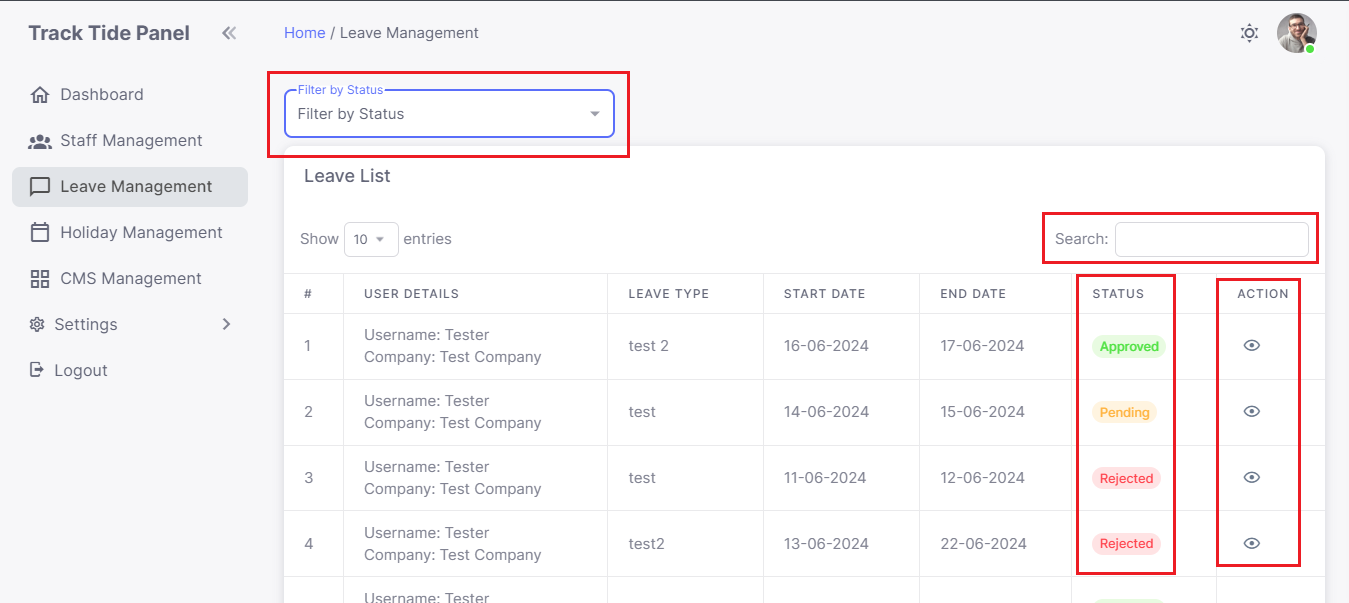
- Manage Leave Requests : The listing page displays all leave approval requests. Admins can view and manage these requests from this screen.
- Global Filters : Search leave requests using various filters such as date range, staff member, and leave type. This makes it easy to find specific leave requests.
- Approval/Reject : Admins can approve or reject leave requests. Approved or rejected leave requests will reflect on the staff’s mobile app, ensuring they are informed about the status of their requests.
- Comprehensive View : While the dashboard displays only the latest leave applications, this section provides access to all leave requests, including approved, rejected, and pending ones. This comprehensive view helps in managing leave requests efficiently.
Leave Request Detail
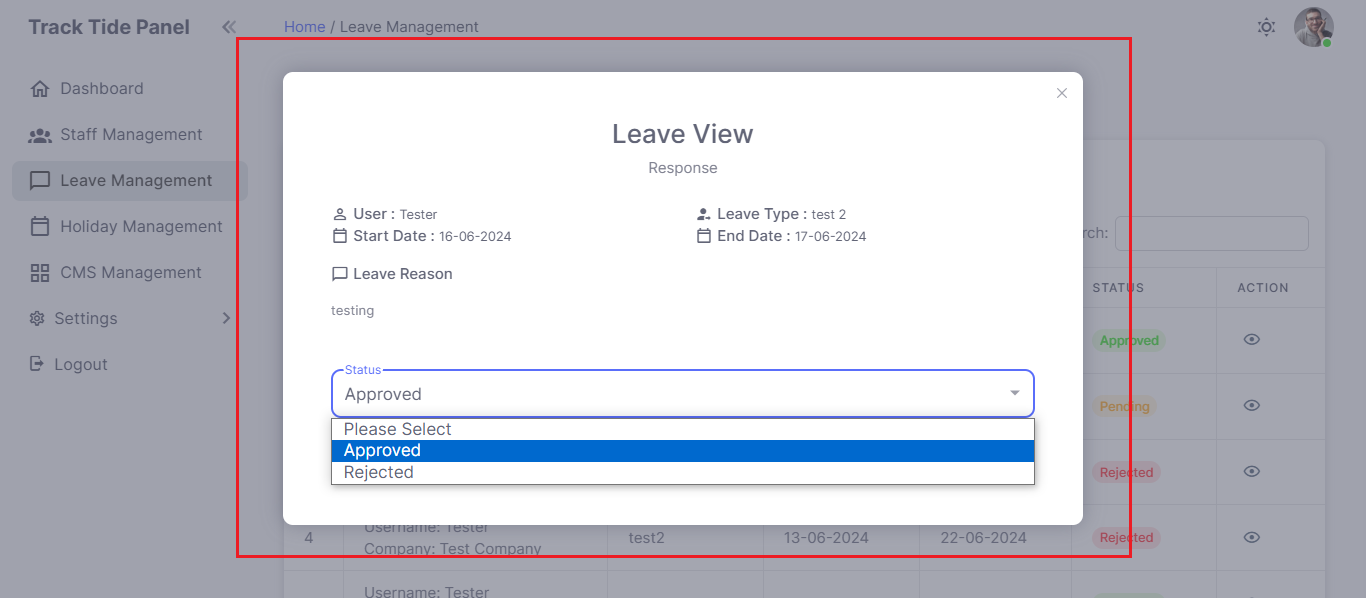
- Detailed View:By clicking the eye icon in the action column, admins can see full details of the leave request. This includes the reason for the leave, the duration, and any additional notes provided by the staff member.
- Approval/Reject: Admins can approve or reject the leave request from this screen. They can also add reasons for rejection, which will be visible to the staff member in their app. This transparency helps in maintaining clear communication between staff and management.
Holiday Management
Overview
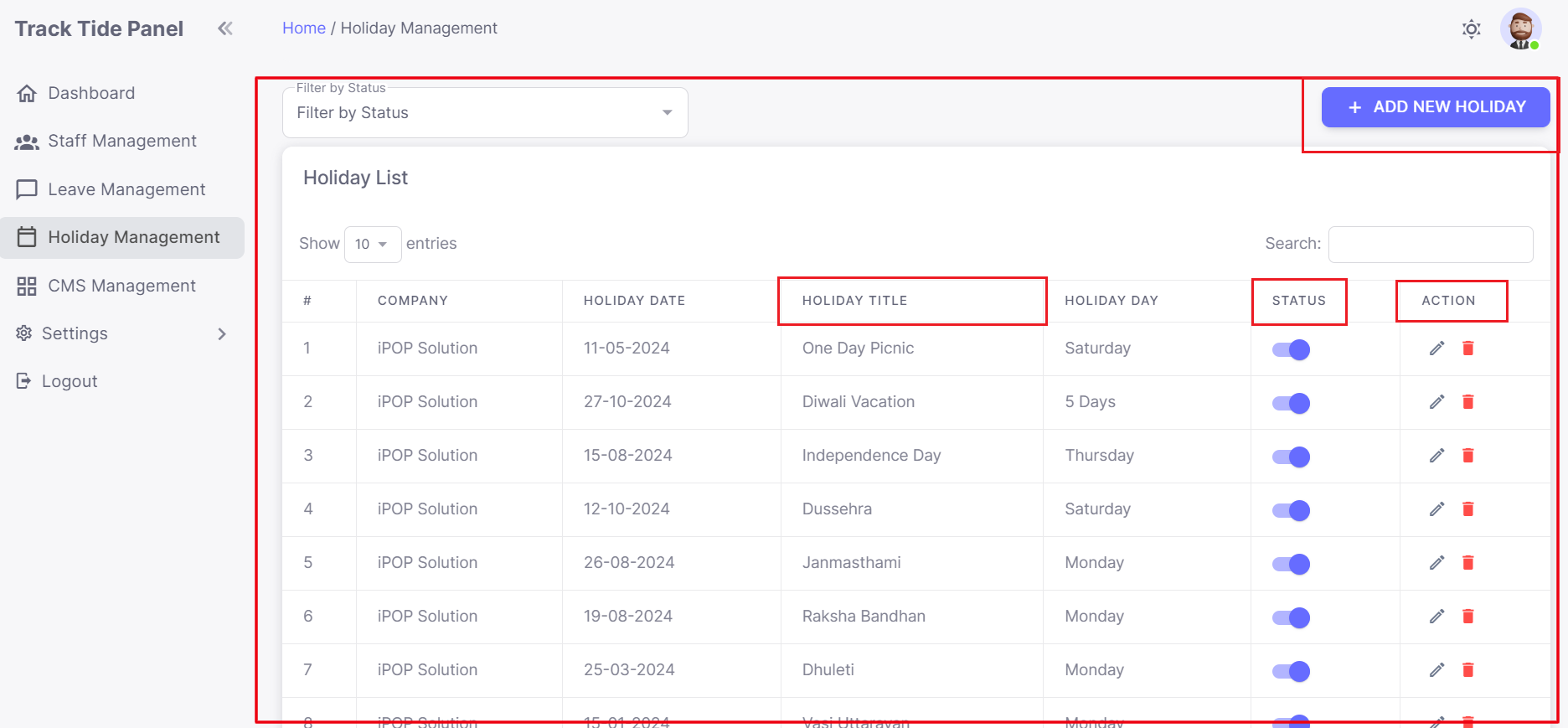
- Holiday Management allows admins to manage company holidays efficiently, ensuring that all staff are aware of upcoming holidays and that these are reflected in attendance and leave records.
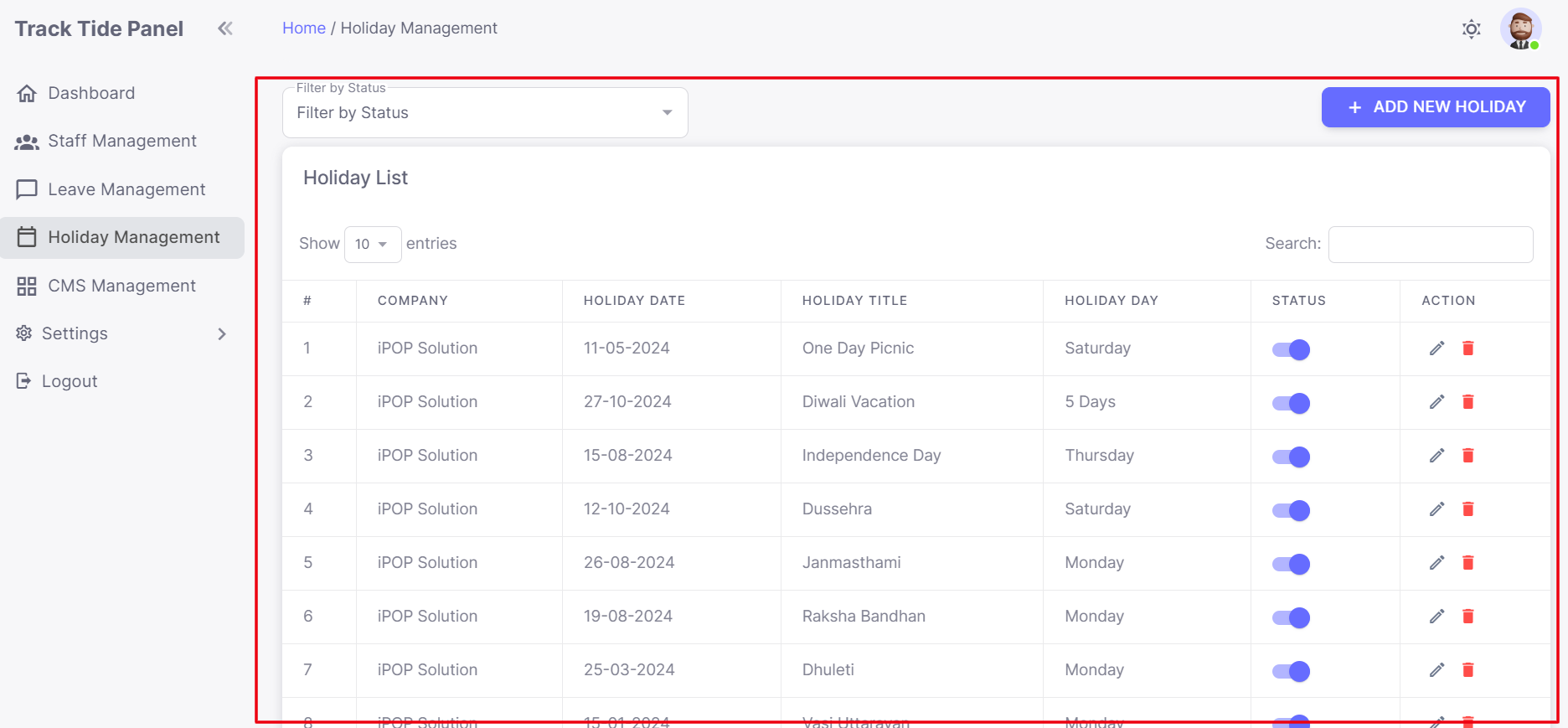
- Manage Holidays: Admins can add, edit, or remove holidays. Any holiday added here will be reflected as a company holiday in the mobile app and all generated reports or listings. This ensures that all staff members are aware of official company holidays.
Listing
- Holiday List: The listing page displays all added holidays and their statuses (active or deactivated). Admins can see which holidays are currently active and which are not.
- Actions: Admins can create new holidays, edit existing ones, or remove holidays from the list. This flexibility allows for accurate holiday management and ensures that all staff are informed about company holidays.
CMS Management (Content Pages)
Overview
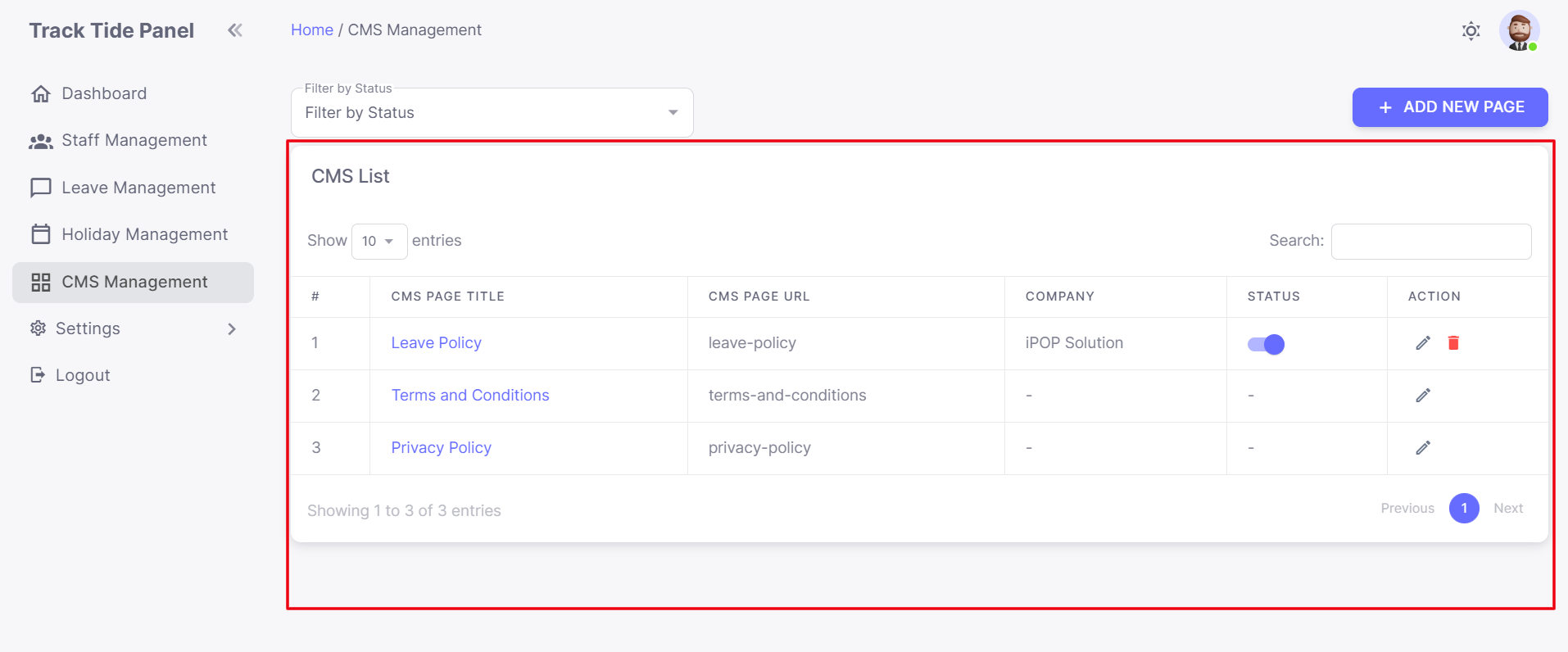
- The CMS Management module allows admins to manage company policies and other important content. This ensures that all staff have access to the latest company policies and other essential information.
- Company Policies: Admins can add important policies such as leave policies, salary policies, and more. These policies are reflected in the mobile app under the settings tab in the preferences section. This ensures that all staff members are aware of company policies and can access them easily.
Listing
- Manage Content Pages: The listing page displays all content pages. Admins can search and manage different policy pages using global filters. This makes it easy to find and edit specific policies.
- Add/Edit Pages: Admins can create new pages or edit existing ones. This flexibility allows for the continuous updating and management of company policies.
- Temporary Hide: Admins can toggle the policy link ON/OFF to temporarily hide it from the mobile app. This is useful for policies that are being updated or are no longer relevant.
Report / Staff Report
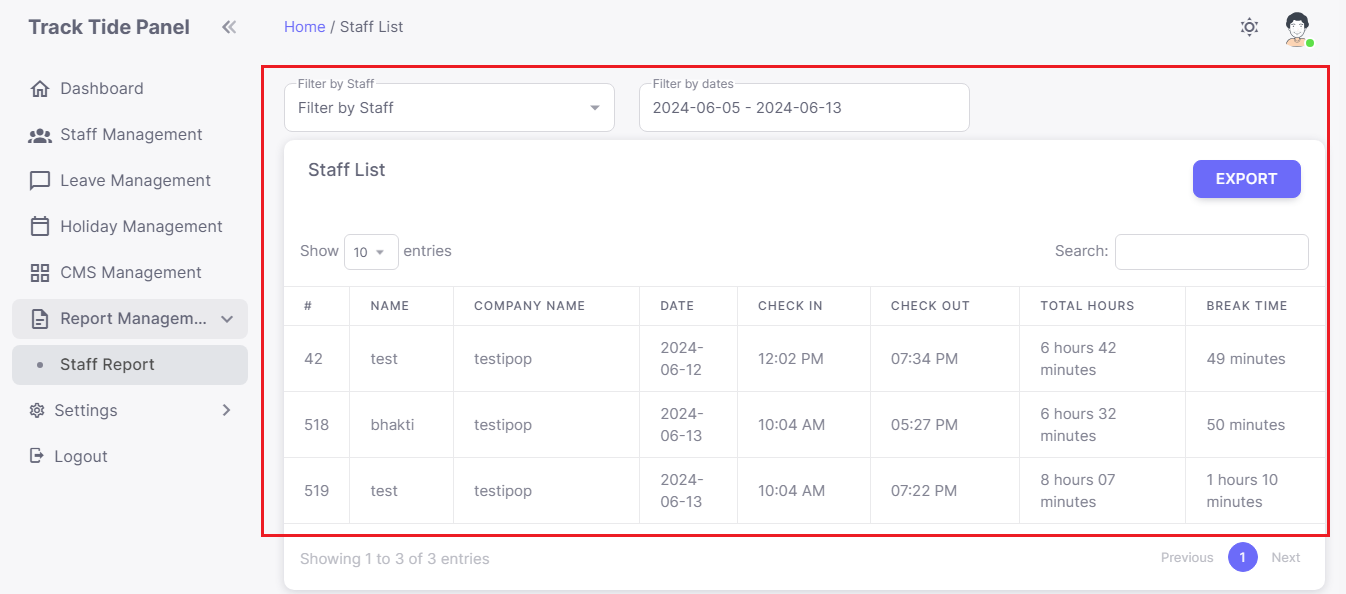
The Reports section provides detailed insights into staff
attendance and performance. This data is crucial for
making informed decisions and managing staff effectively.
Report Generation
- Filters : Admins can search data using filters based on date range, staff member, and more. This makes it easy to find specific data and generate reports.
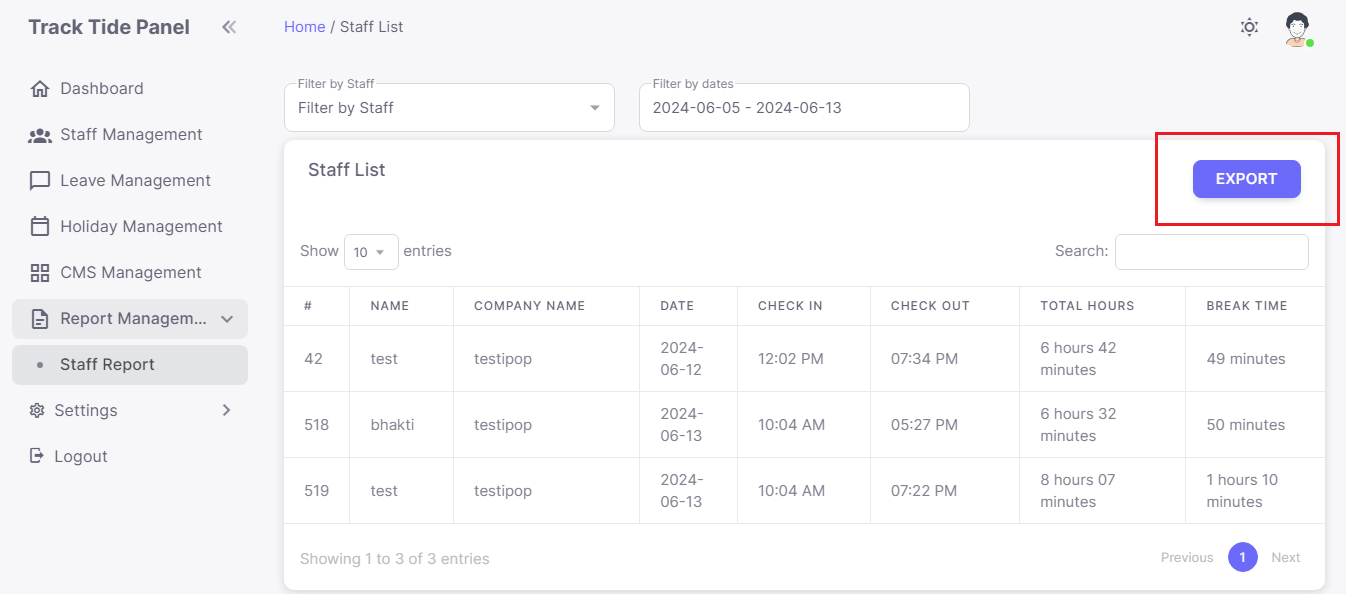
- Export : Data can be exported into a CSV file for reporting and analysis. This is useful for maintaining records and conducting performance reviews.
Settings / Barcode
- QR Code Generation : Admins can generate and regenerate barcodes used for QR scanning in the mobile app. This ensures that staff can check in and out efficiently.
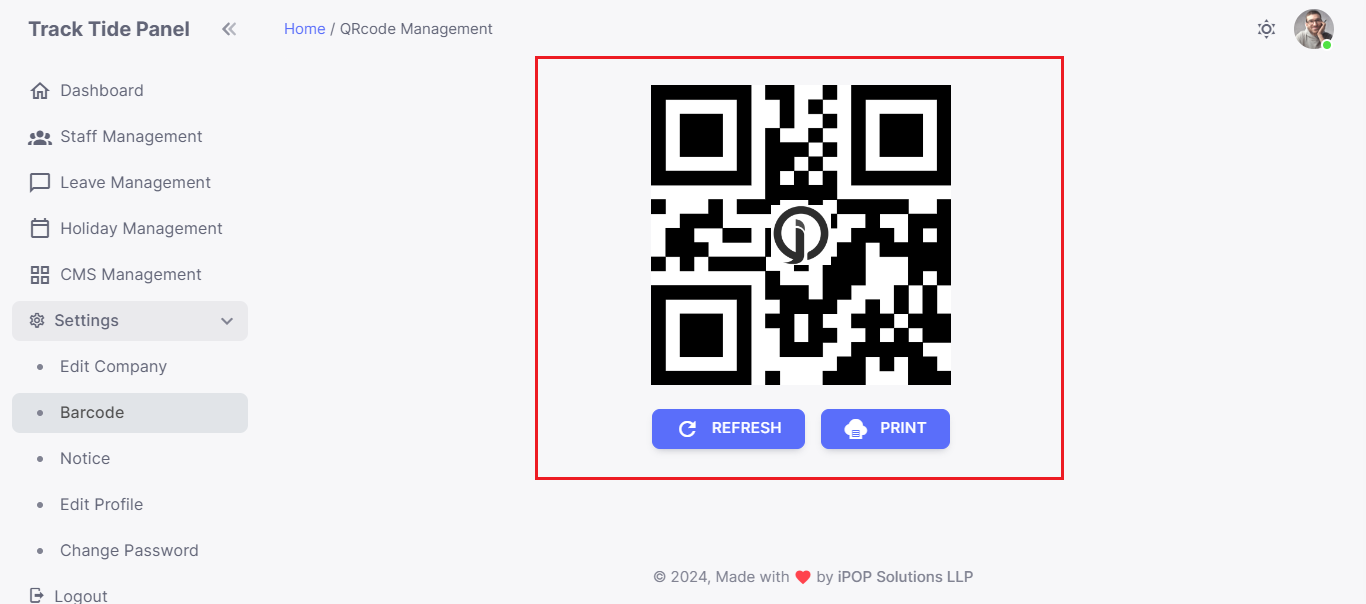
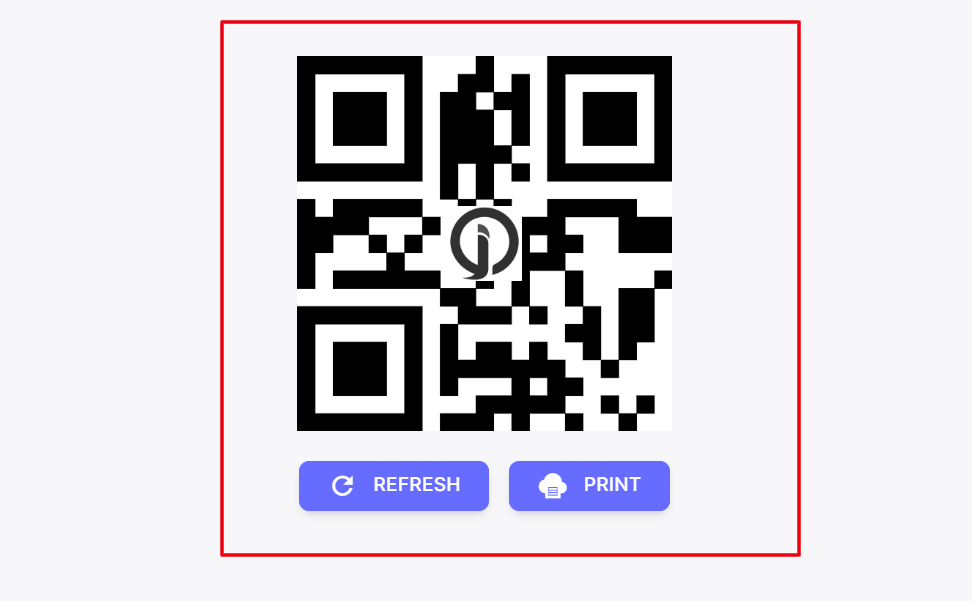
- Refresh Barcodes : Admins can Refresh and print the barcodes as needed. This is useful for placing QR codes at various locations within the office.
Settings/ Edit Company Info
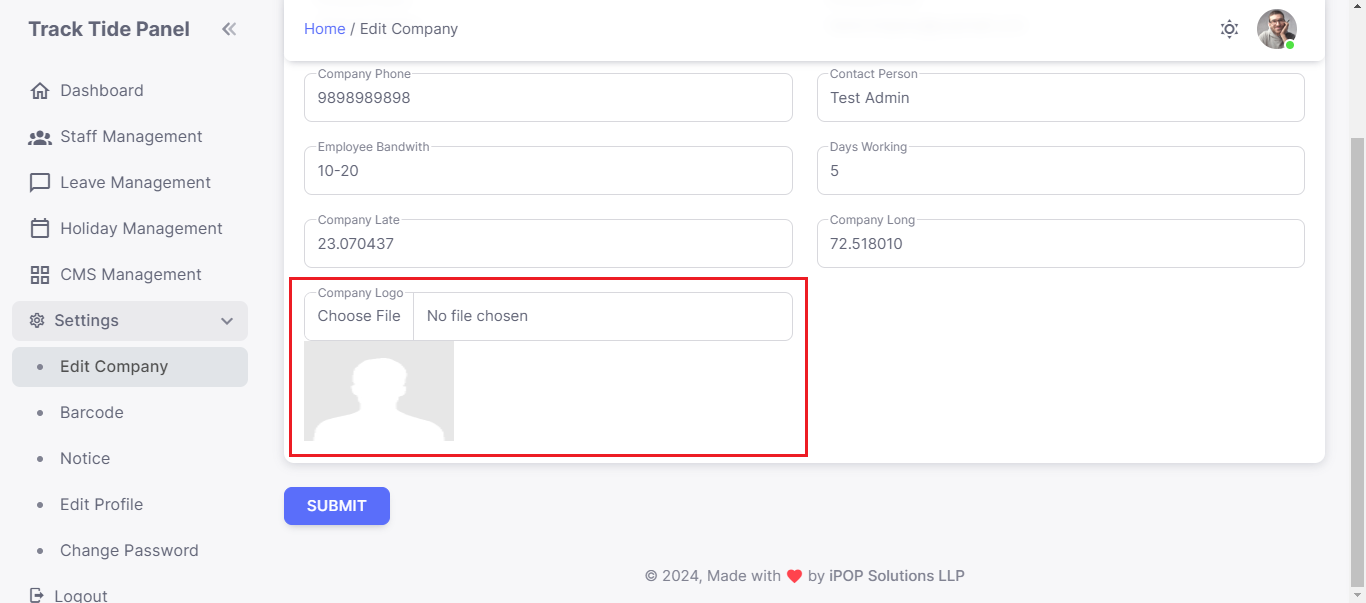
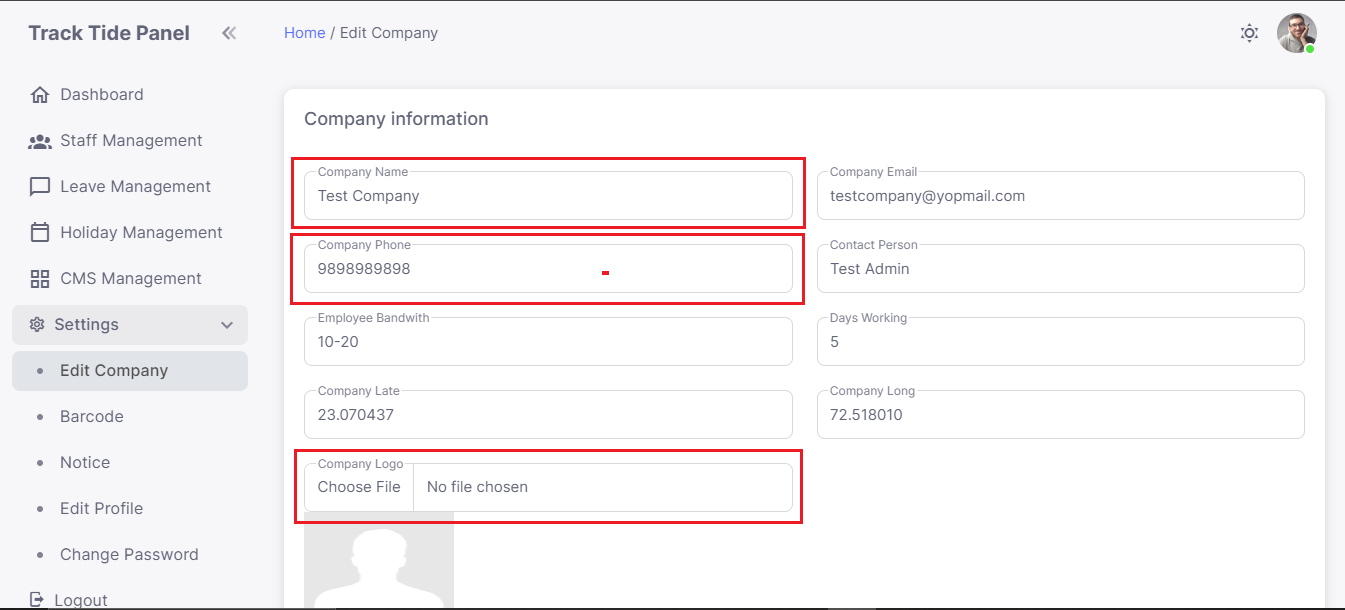
- Change the Logo : Upload a new company logo.
- Update Company Name : Edit the official company name.
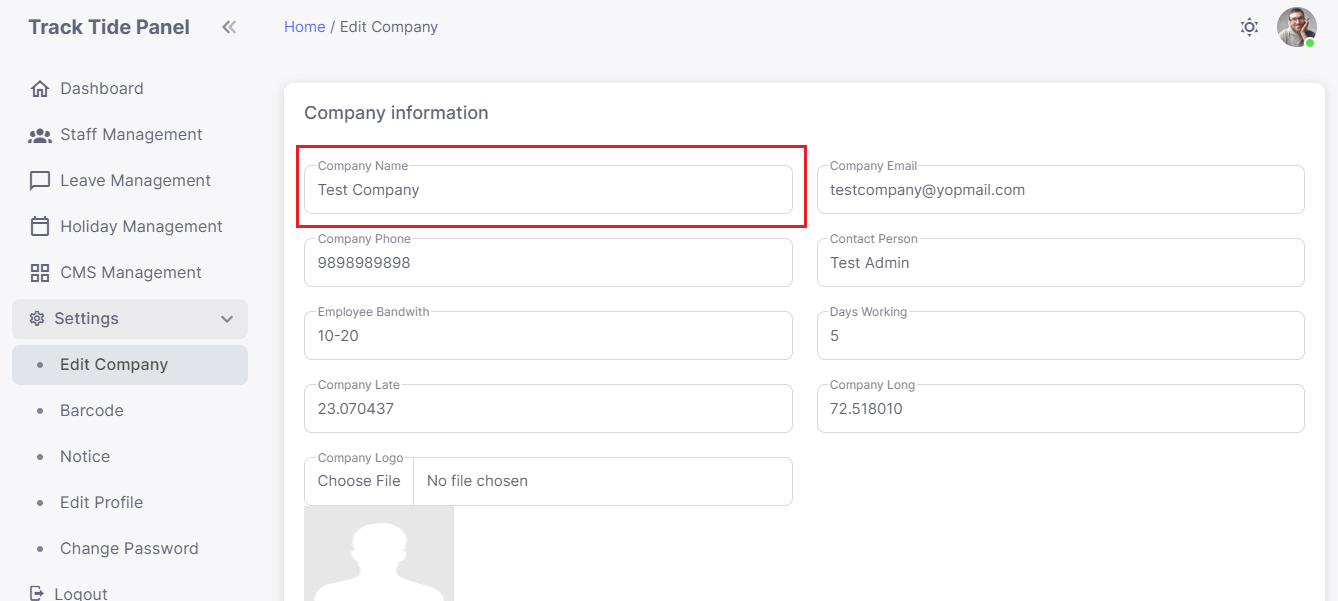
- Update Contact Information : Change the company email and phone number.
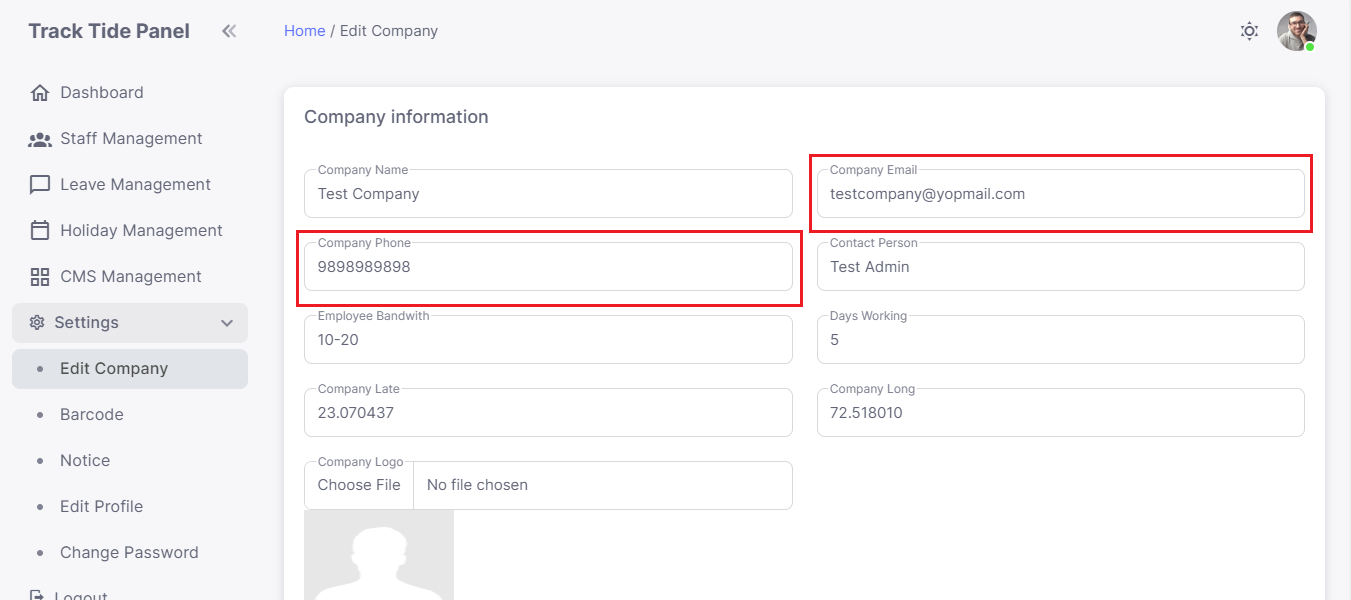
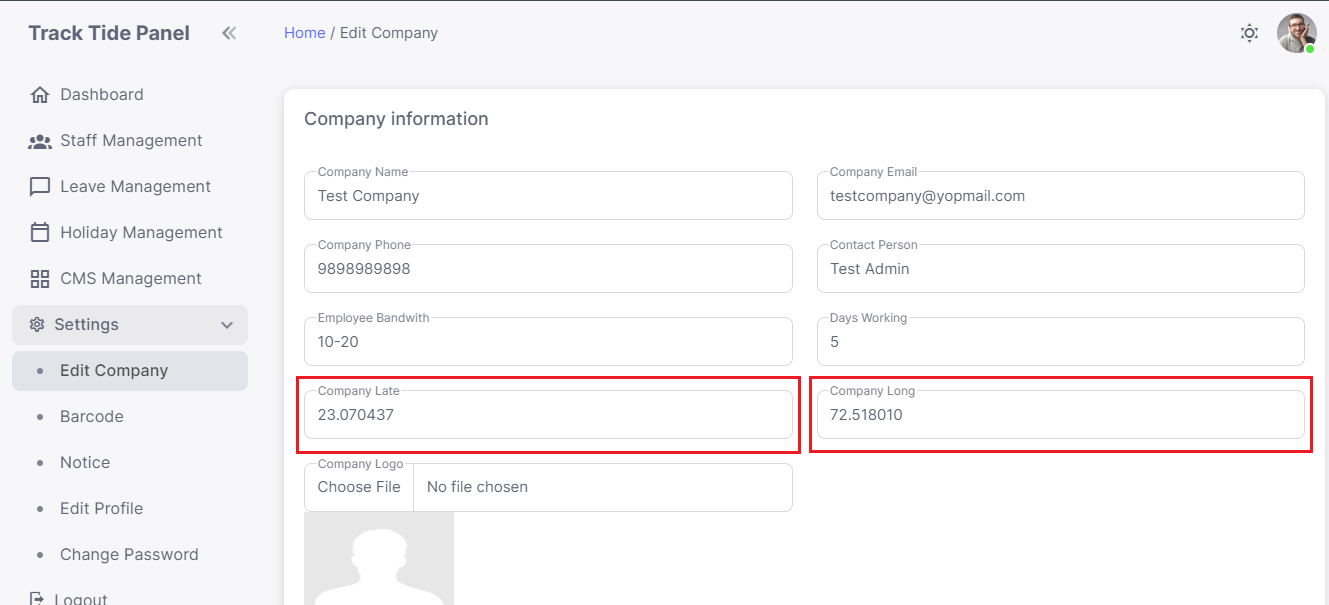
- Location Tracker : Toggle the location tracker ON/OFF. When enabled, staff can only scan QR codes within a specified radius set by latitude, longitude, and radius settings. This ensures that staff are physically present at the office during check-ins.
Settings/My Profile
The My Profile section allows company admin to manage
their personal information and preferences:
Editable Details
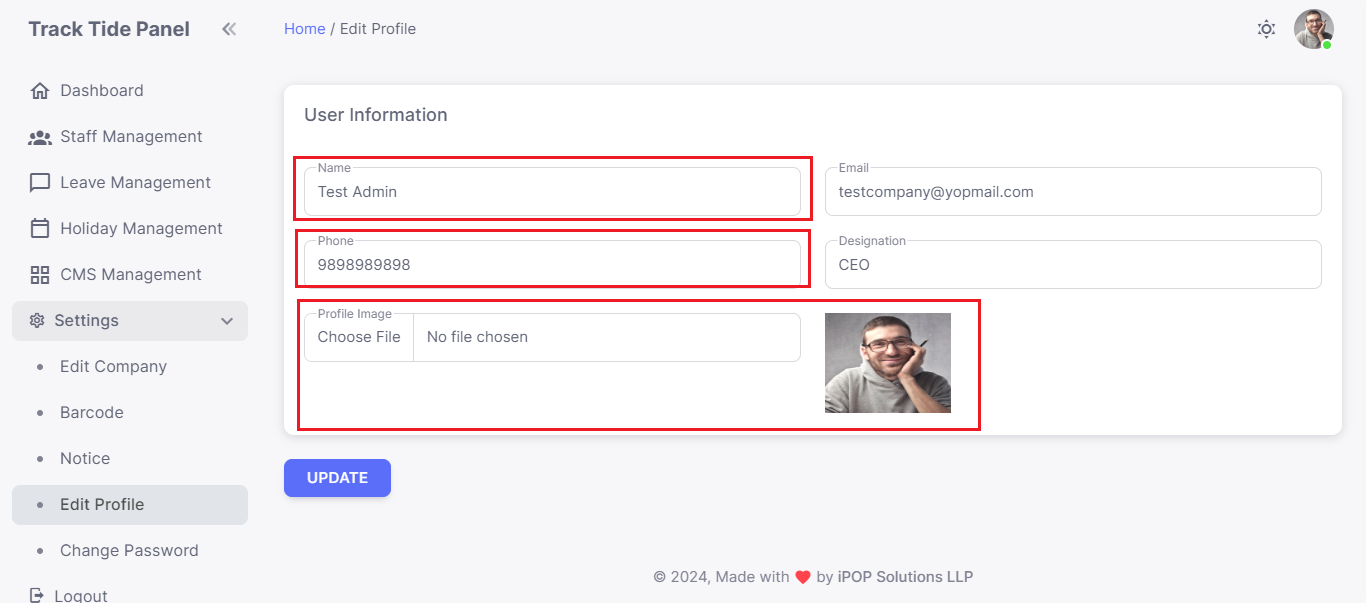
- Staff members can update their profile information, such as name, contact details, and profile image
Profile Customization
- Staff members can personalize their profile by uploading a profile picture and adjusting other personal details.
Settings/Change Password
Company admin can change their password through this
secure process:
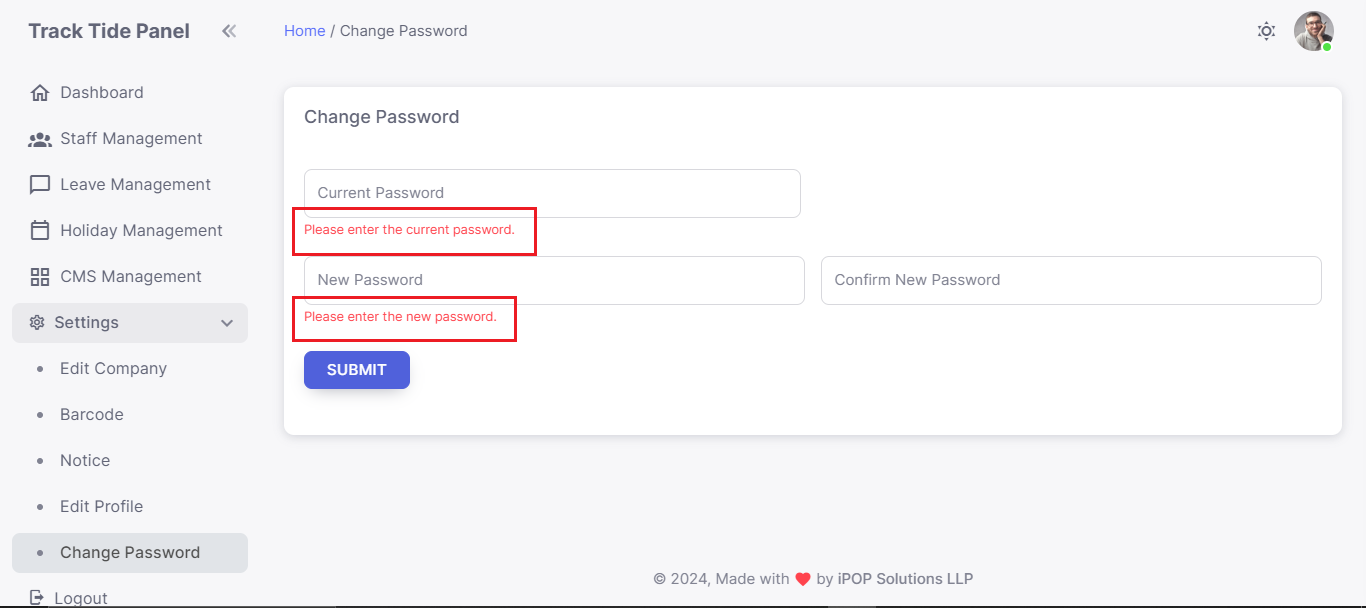
Password Change Form :
- Old Password : company admin must enter their current password for validation.
- New Password : Enter the new password.
- Confirm New Password : Re-enter the new password to confirm.
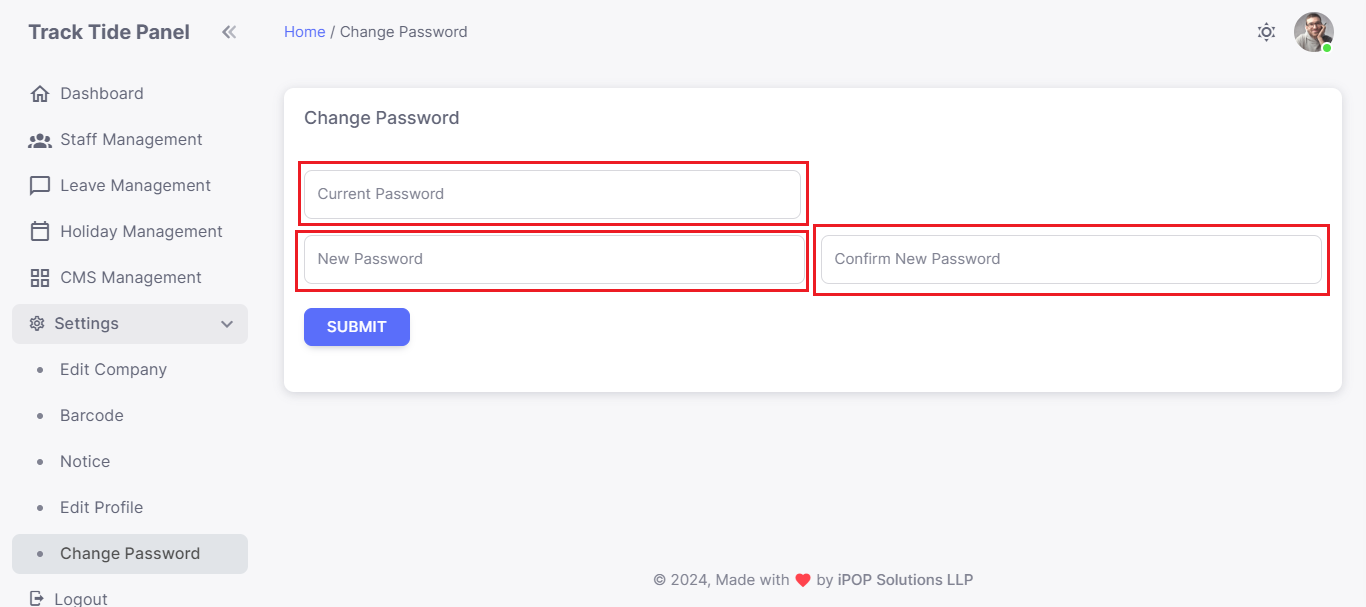
Validation and Update :
- The system will validate the old password before updating to the new password.
- Once validated, the password will be successfully changed, and company admin will be notified of the update.